 Katarzyna Petru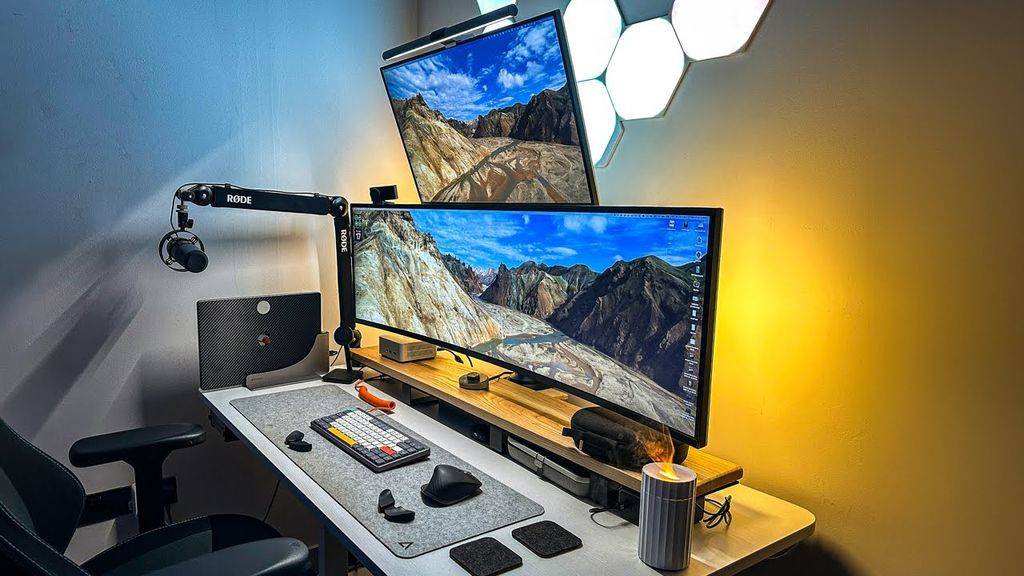
Many productivity experts, as well as some gamers, have been recommending working with dual monitors for years. The extra workspace can truly change everything - you can comfortably arrange several applications side by side, without cramming them into tiny windows. The problem is that a dual-screen setup also has its fair share of drawbacks that are rarely discussed. Two monitors simply take up a lot of space. Desks quickly become cluttered, and the room for speakers, notes, or other accessories drastically shrinks. Then there’s the issue of ports - the computer needs to support two video outputs since a single HDMI cannot be "multiplied" with a splitter to operate two independent screens. There's one more thing: differences in image quality. Even two similar monitors can display different colours, brightness, or contrast, especially if they are from different series or brands. Without professional calibration, achieving complete consistency is tough.
That’s why more and more people are choosing to go with one ultrawide monitor instead of two.
Ultrawide instead of dual screen
Ultrawide monitors go beyond the standard 16:9 aspect ratio. You will most often encounter 21:9 formats or the extreme 32:9. The former offers about 33% more horizontal space, while the latter effectively replaces two standard 16:9 monitors, but without the bezel interruption in the middle. For example, a 29-inch ultrawide monitor is almost twice as wide as a 15-inch laptop screen, and it is also noticeably taller. The effect? More workspace, less squinting, and significantly greater comfort during long sessions.
By opting for ultrawide, you get all the benefits of a large desktop, but without the mess, cables, and issues typical of a dual-screen setup. The annoying bezel in the middle of the image also disappears, which is crucial for gaming and creative work. Additionally, Windows 11 offers the Snap Layouts feature, which quite sensibly helps arrange windows on one large screen.
How to Get the Most Out of an Ultrawide Monitor
System window layout options are a good start, but they quickly prove to be quite limited. Fortunately, this can be easily circumvented. Windows users can turn to PowerToys - a somewhat forgotten but extremely useful toolset from Microsoft. The FancyZones module allows you to create your own zones on the desktop and perfectly tailor the window layout to your needs. On macOS, a similar role is performed by the Rectangle app, which offers significantly more options than Apple's default tools.
Ultrawide monitors also excel at streaming. With FancyZones, you can designate the perfect 16:9 zone on the screen to run a game in borderless window mode. The stream then looks correct on Twitch or YouTube, and you can keep OBS, chat, or the streamer panel alongside it - without overlays, window switching, or glancing at a second monitor or phone.
One screen, more sense
Ultrawide monitors are a combination of two worlds. They offer a huge workspace, allow you to have many applications open simultaneously on the screen, and don't require additional ports or space on your desk. They also help maintain better ergonomics – you don't have to constantly turn your head to the side, which can save your neck and back in the long run. Just as importantly, they are often simply cheaper. One 34-inch ultrawide monitor can cost less than two solid 24-inch monitors. The end result? Less money spent, fewer compromises, and significantly greater comfort for both work and gaming.