 Maciej Koper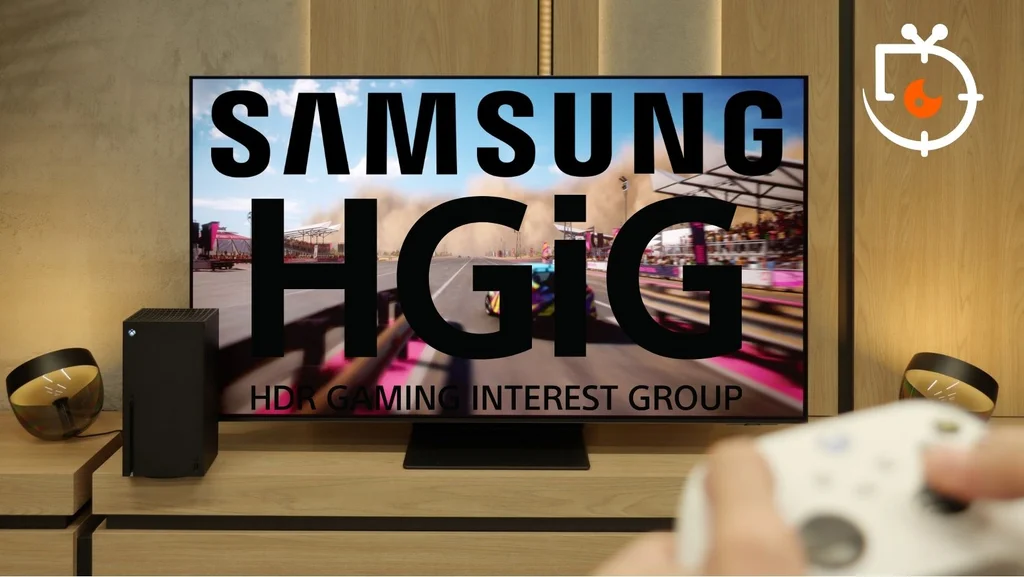
Players using the latest Samsung TVs (2025 models) can finally breathe a sigh of relief. After an absence that caused quite a stir in the gaming community, the key HGiG feature is back. Samsung acknowledged the users' concerns and released a patch, although for now it requires a bit of manual work.
What is HGiG and why did this feature disappear from Samsung TVs?
To understand the significance of the issue, we must look at the HGiG technology (HDR Gaming Interest Group). In standard HDR mode, the TV analyzes the image and applies its own algorithms (so-called Tone Mapping) to adjust brightness to the capabilities of its panel. The problem arises when the console (PS5 or Xbox Series X) does exactly the same thing. This leads to the phenomenon of "double processing." What effect does this have? The brightest points on the screen – like the sun, light reflections, or explosions – merge into one white spot, losing all detail. HGiG is a standard that allows the console to tell the TV: "Rest, don't touch the image, let ME (the console) take full control." This way, the image is displayed in a raw and precise manner, exactly as the game developers intended.
Controversial decision and community voice
Samsung, while designing its lineup for 2025, initially retained this feature, only to remove it during update 1126. The manufacturer's argument was straightforward: according to their analyses, the average gamer often skipped the manual HDR calibration process in the console menu. Without this calibration, the image with HGiG turned on could appear too dark or not impressive enough. Samsung aimed to "assist" the user by imposing its own automated solutions. However, the company underestimated one group: true gaming enthusiasts. This is the most aware and demanding audience that has been choosing Samsung TVs for years, specifically due to their gaming pedigree and proprietary features like Game Motion Plus (an unrivaled motion smoother for games). The absence of HGiG was perceived as a step backward and sparked a real storm online, casting doubt on the brand's reputation as a leader in the gaming market.
Long-awaited fix
After months of silence, at the end of 2025, Samsung finally acknowledged the players. The manufacturer prepared a software update numbered 1131, which restores full support for HGiG in this year's models. However, there is a certain "catch." The update is not yet available from the automatic menu of the television. To enjoy the regained feature, we need to show a little initiative and install it manually using an external USB memory. This is currently the only way for those who do not want to wait for Samsung to provide the files for download directly via Wi-Fi.
Guide: How to Install the (Latest) Update 1131 on Samsung TVs via USB
Currently, the TVs are running version 1126, and the latest version 1131 (restoring HGiG) is not yet available through automatic Wi-Fi updates. You need to upload it manually. Here’s how to do it:
Step 1: Preparing the Files
Go to the Samsung Support Download Center: https://www.samsung.com/us/support/downloadcenter
Search for your TV model. If you don’t know the exact code, you can find it on the nameplate on the back of the case (for the purposes of this guide, the full model designation will be S95F).
In the “Instructions and Download Files” tab, download the firmware file (version 1131).
Extract the downloaded file using the built-in Windows 11 tool or a program like WinRAR.

Step 2: Preparing the USB Drive
Formatting: Connect the USB drive to your computer and format it to the FAT32 or NTFS file system (according to Samsung's specifications, both formats are supported).
Unpacking Files: Unpack the downloaded
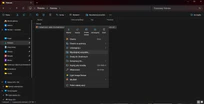
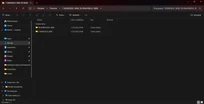
.zipfile on your computer's disk (using Windows 11's built-in tool or WinRAR).Proper File Structure (KEY MOMENT): After unpacking, you will see one main folder. Enter it.
Inside, you will find two separate folders with update data.
Copy these two folders directly to the USB drive.
⚠️ NOTE: The USB drive must not contain a single combined folder with the update. When you open the USB memory on your computer, you should immediately see these two folders "loose". If they are hidden in another parent folder, the television will not detect them. DO NOT CHANGE THEIR NAMES.
Clean Media: Ensure that the USB drive is "clean" – it should only contain these two folders, without any other personal documents or photos.
Step 3: Installation on the TV
Plug the USB drive into the USB port on the TV.
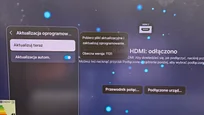
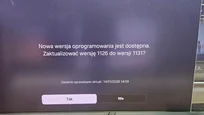
Go to Settings > Technical Support > Software Update > Update Now.
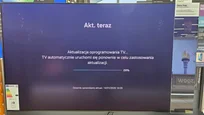
The TV will ask if you want to perform the update from the USB memory – confirm your choice.
How to enable HGiG after the update?
When the television restarts, the feature will be available. To activate it:
Start the console and open the Game Panel (Game Bar).
Go to the picture settings "Game Picture Adjustment."
You will find the option "HDR10 Game" – this is where HGiG is located.
Set this feature to "Basic". (In our picture, this option is grayed out because we did this on a laptop without HDR support. On the console, everything should work smoothly 😉)
The restoration of the HGiG function in the latest update is excellent news for all owners of Samsung TVs from the 2025 model year. The manufacturer’s decision shows that the voices of aware gamers matter. Although the process currently requires manual installation using a USB drive, the final effect of a perfect image in games is worth those few minutes of effort.
PS. With the release of firmware 1131, we are currently updating all our tests and reviews of Samsung TVs from the 2025 model year. In the published materials, we will include the restoration of support for HGiG and its impact on the final assessment in gaming mode. We want you to have access to the most up-to-date information before making a purchasing decision.
If you have questions regarding the setup or the update itself, we invite you to discuss it in the comments and to watch our separate video where we show the setup process for the PS5 / XBOX console along with the TV for the best quality image.