 Direct comparison
Philips PUS8359 is a television that captures attention primarily due to its three-sided Ambilight system. The adaptive backlighting enhances the viewing experience, especially in the evening – the light behind the screen adds atmosphere when watching movies and makes the interior look more interesting. It’s a really nice addition, especially if we like unconventional solutions. For gamers, this model can be a good choice to start with. The low input lag of less than 10 ms ensures quick responses, and the Automatic Game Mode adjusts the settings for smooth gameplay. If we play occasionally, the television performs well, but it is not exactly equipment for those looking for top-notch experiences. As for everyday use, it’s not perfect. The Titan OS looks simple, but it lacks many popular applications, which can be frustrating. Additionally, the interface can sometimes operate slower than we’d like – switching apps or jumping between settings may occasionally require patience. If we have previously used more advanced systems like Android TV, Titan OS can be quite disappointing. And what about picture quality? This is where the problem arises. The panel offers average brightness and low contrast, so in bright rooms the image may look pale. In darker scenes, black becomes more gray, which takes away details. HDR? We shouldn’t count on great effects – the lack of Dolby Vision and limited technical capabilities mean that HDR content does not leave a significant impression. Philips PUS8359 is a television that works great for fans of Ambilight and those seeking basic functions. It performs well in gaming, and evening screenings with impressive backlighting will gain additional atmosphere. However, if we care about high picture quality or an advanced Smart TV system, it’s worth looking for other models. This television is a proposition for those who do not expect too much and want something simple with an interesting visual effect.
- Matching (Score) |
- Our verdict |
- TV appearance |
- Where to buy |
- Contrast and black detail |
- HDR effect quality |
- Factory color reproduction |
- Color reproduction after calibration |
- Smoothness of tonal transitions |
- Image scaling and smoothness of tonal transitions |
- Blur and motion smoothness |
- Console compatibility and gaming features |
- Input lag |
- Compatibility with PC |
- Viewing angles |
- Daytime performance |
- Panel details |
- TV features |
- Apps |
- Playing files from USB |
- Sound
PUS8359 / PUS8349

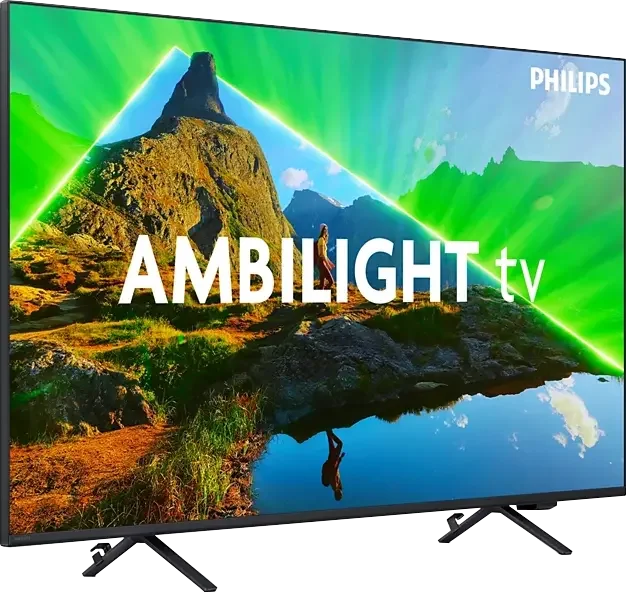
Panel type: LCD IPS
Resolution: 3840x2160
System: Titan OS
Model year: 2024
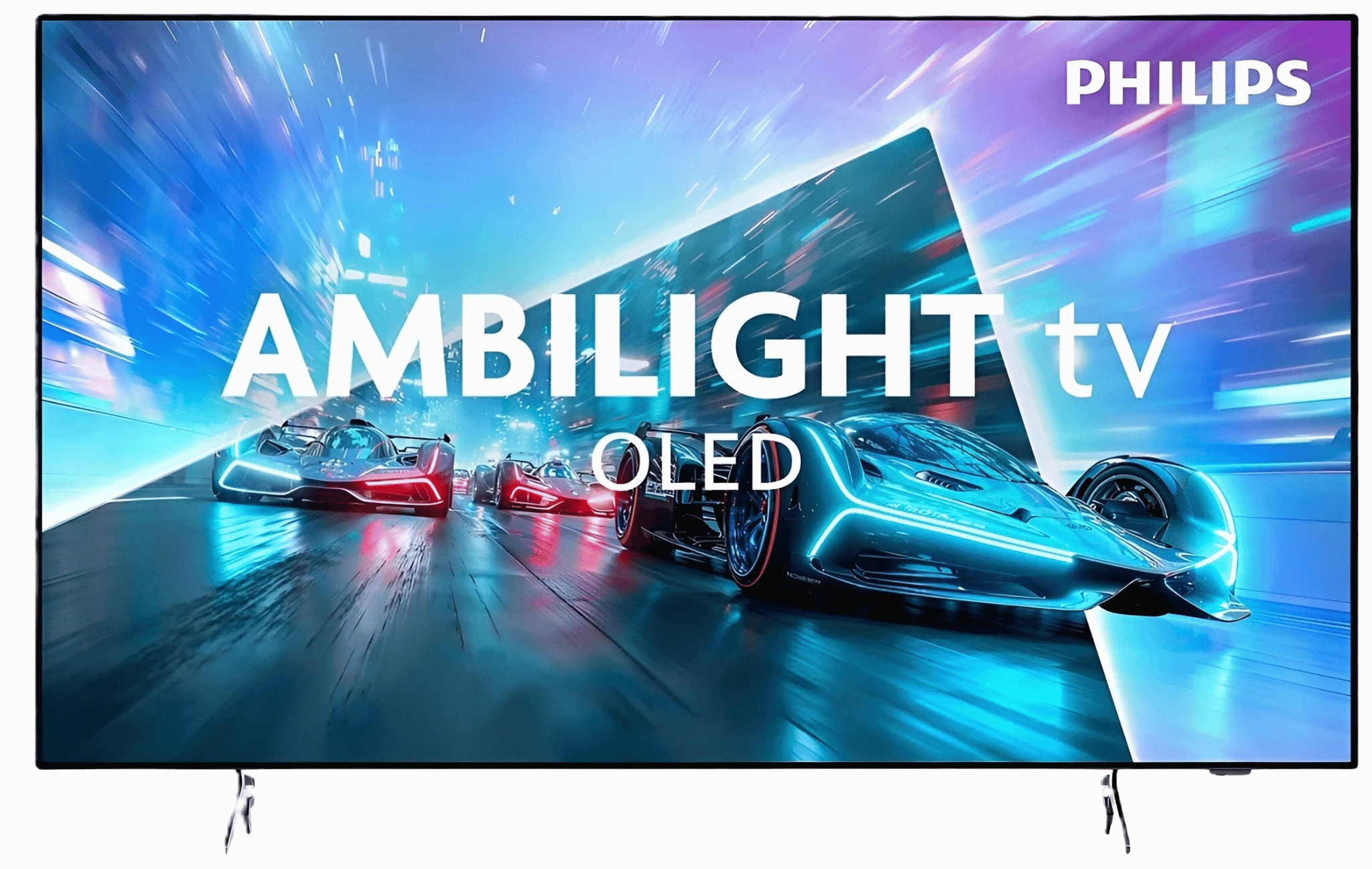
Panel type: WRGB OLED
Resolution: 3840x2160
System: Titan OS
Model year: 2026
Check how well they match your needs
Take the surveyOverall rating
5.1
7.7
 Movies and series in UHD quality
4.4
8.0
 Classic TV, YouTube
4.5
8.7
 Sports broadcasts (TV and apps)
4.6
8.5
 Gaming on console
6.2
9.0
 TV as a computer monitor
6.0
7.6
 Watching in bright light
4.3
4.5
 Utility functions
5.3
7.9
 Apps
6.7
7.7
 Sound quality
6.1
7.0
Complete the survey to find out what fits your preferences
Advantages

Ambilight 3
Illuminated remote control
Basic functions for gamers
Low input lag
Support for all audio formats (Dolby and DTS)
Perfect blacks and very high contrast
Impressive HDR for evening viewing
Very good color reproduction after calibration
Wide viewing angles
Ambilight enhances the viewing experience 🙂
120 Hz panel useful for gaming and sports
Four HDMI 2.1 inputs
Dolby Vision support (improves the picture in many HDR scenes)
Disadvantages

Poor black and contrast
Average brightness
Limited TitanOS system
Limited app selection on Titan OS
Lower SDR brightness compared with competitors
Screen reflections are distracting in a bright living room
Infrared remote requires pointing at the TV (sometimes slow to respond)
Visible posterization
Our verdict
Philips OLED761 shows that an entry-level OLED in the brand’s lineup can be a successful choice for watching movies. It performs best in the evening, when perfect black levels and impressive HDR let you appreciate the strengths of this panel. After calibration the colors are very well reproduced, so it's hard to find major faults with the picture during regular viewing. It doesn't always handle the brightest highlights in demanding HDR10 films equally well, but Dolby Vision helps in those scenes. This is a TV that can leave a really good impression when you turn off the lights. A big part of that experience is Ambilight. If you like backlighting the wall behind the screen, the OLED761 gives a concrete reason to consider Philips. You don’t have to pay extra for higher-tier models to get this feature combined with a good OLED picture. This model also works for gaming: the 120 Hz panel and four HDMI 2.1 inputs let you use it for movies, consoles, or a PC. That matters, because even the cheapest OLED in a lineup should be a versatile purchase, not a TV that’s only good for evening sessions.
Before buying, though, it’s worth looking at two limitations. The first is watching in a bright room. The OLED761 is a bit dimmer than rivals using a similar panel, and the absence of a polarizer in the OLED SE panel further reduces its performance in bright rooms. The second is Titan OS. The system runs more smoothly than in earlier versions, but it still offers a smaller selection of apps than the competition. Improved smoothness is welcome, but it won't replace access to the services you use every day, so it's best to check app availability before buying. We also didn’t like the remote. Even though it's backlit and has a full set of useful buttons, it requires precise aiming at the screen.
Ultimately, the Philips OLED761 makes the most sense for people who mainly watch in the evenings and want Ambilight. In those conditions it can confidently compete with the Samsung S85H or LG B6, and the choice between them will depend more on price, the operating system, and personal habits. Philips doesn't have a clear advantage in every use case, but you shouldn't treat it as an inferior option just because it opens the brand’s OLED range. At the right price it's a good buy... but only if the available apps meet your needs.
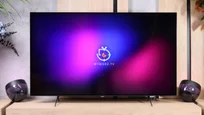
TV appearance


Contrast and black detail
1.9/10
10/10
Local dimming function: No
Contrast:

Result
1,000:1
Result
1,050:1
Result
900:1

Result
1,050:1
Result
850:1
Result
∞:1
Result
∞:1
Result
∞:1
Result
∞:1
Result
∞:1
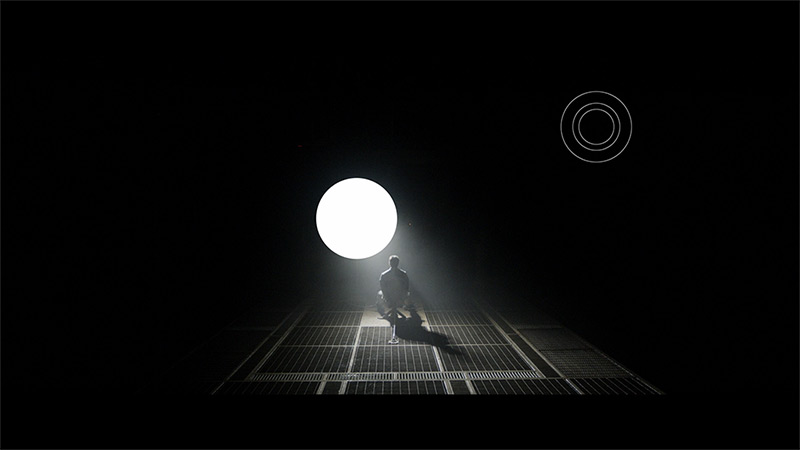
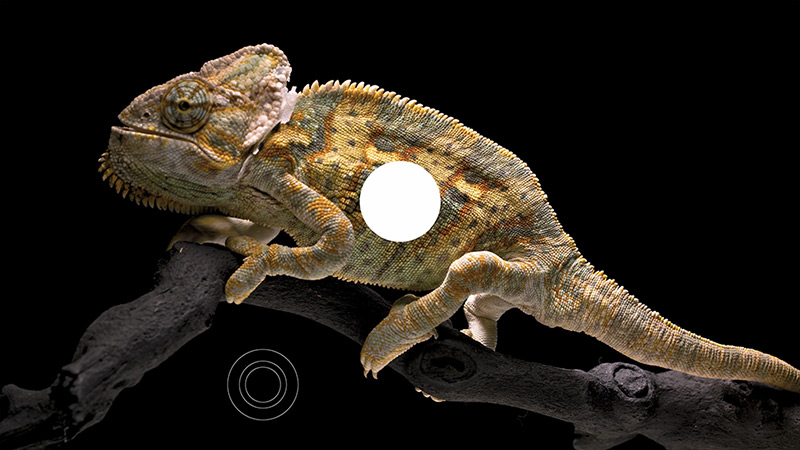
Halo effect and black detail visibility:
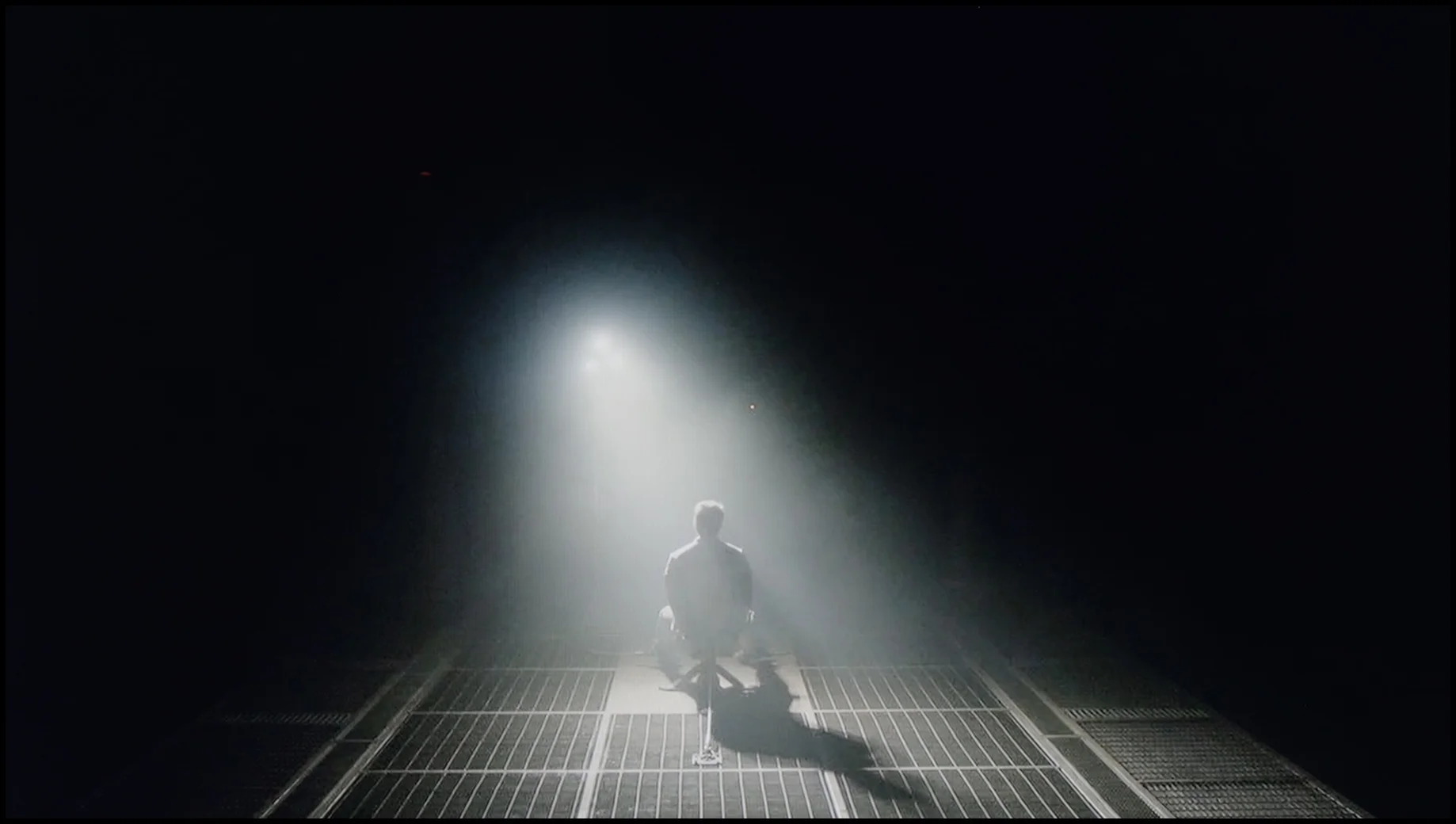
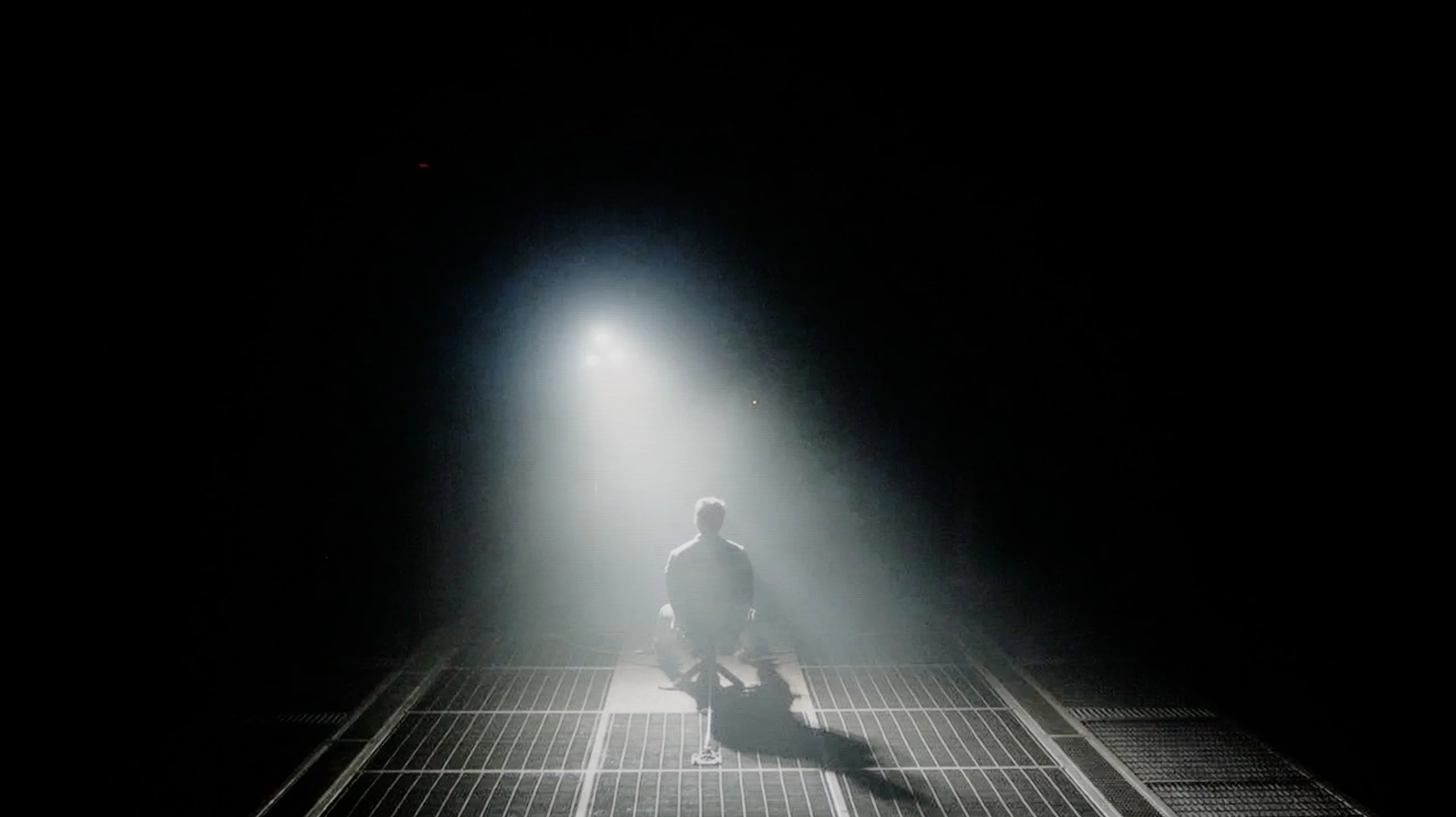
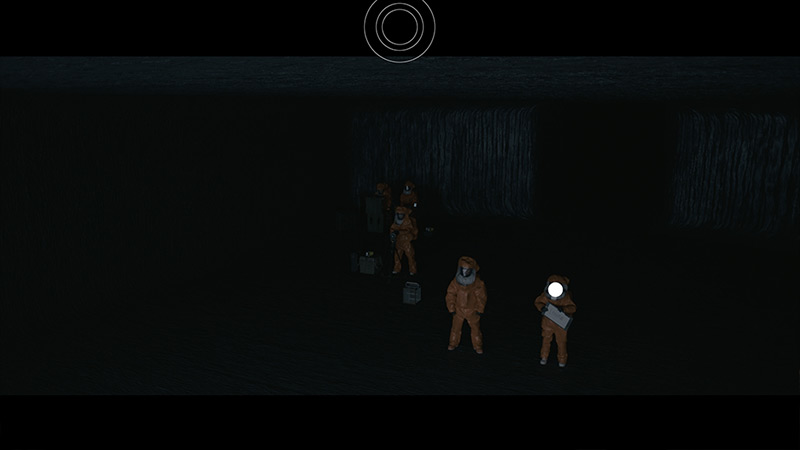
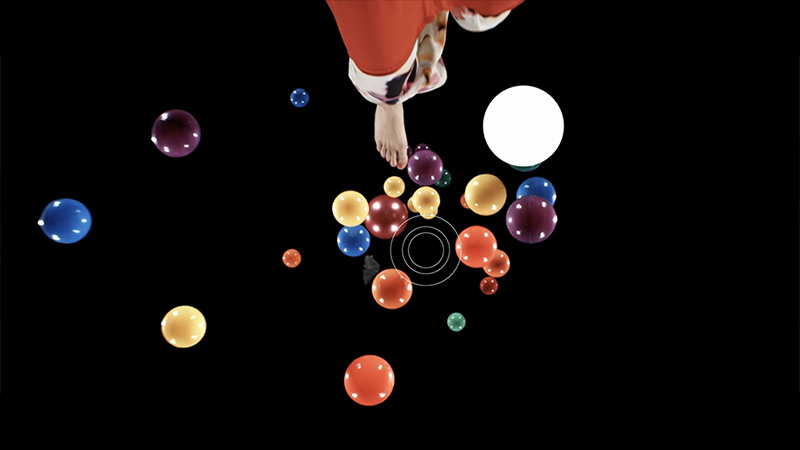
Check the visibility of bright lights on a dark background. Mini-LEDs often struggle with this. The photo does not compare black levels – that’s what the video below is for.
The video accurately shows differences in contrast and black levels between TVs, as well as potential issues: halo around bright objects or Mini-LED zone operation visible as brightness jumps.
The Philips PUS8359/12 in 55" and 43" versions is based on an IPS matrix, which significantly affects contrast quality. Unfortunately, test results clearly show a very low level. Black, instead of resembling deep tar, appears more like silver ash, which is particularly noticeable when watching dark scenes. Such a level of contrast limits the ability to fully enjoy the image, especially for those who prefer viewing in dimly lit rooms.
In this category the Philips OLED761 receives the highest score. The OLED panel allows each pixel to be controlled independently, and where the image should be completely black you can simply turn the pixel off. As a result we achieved infinite contrast in all measurement scenes. When watching this translates to deep blacks and very clear separation of bright elements from a dark background. Even a small lamp or a star does not cause the surrounding area to be illuminated by the screen, something Mini LEDs still struggle with in demanding scenes. This is an advantage of the technology itself, so even the cheapest Philips OLED can match much more expensive models in this respect. In a dark room it’s especially obvious how much that precision delivers. Black doesn’t go gray just because a bright object appears next to it, and the TV doesn’t have to choose between dimming the light and preserving a dark background.
Certain reservations apply to the way shades just above black are displayed. In cinematic scenes the OLED761 can slightly brighten those tones, so the very darkest parts of the image can be a bit brighter than they should be. The start of the luminance curve confirms this. That doesn’t mean the panel can’t show perfect black, since completely black elements remain turned off. The imperfection affects the rendering of the darkest grays and, while it doesn’t negate the excellent contrast, it can be noticeable in some night scenes.
HDR effect quality
3.7/10
6.1/10
Luminance measurements in HDR:

Result
240 nit

Result
225 nit
Result
285 nit
Result
236 nit

Result
280 nit
Result
538 nit
Result
702 nit
Result
784 nit
Result
740 nit
Result
289 nit
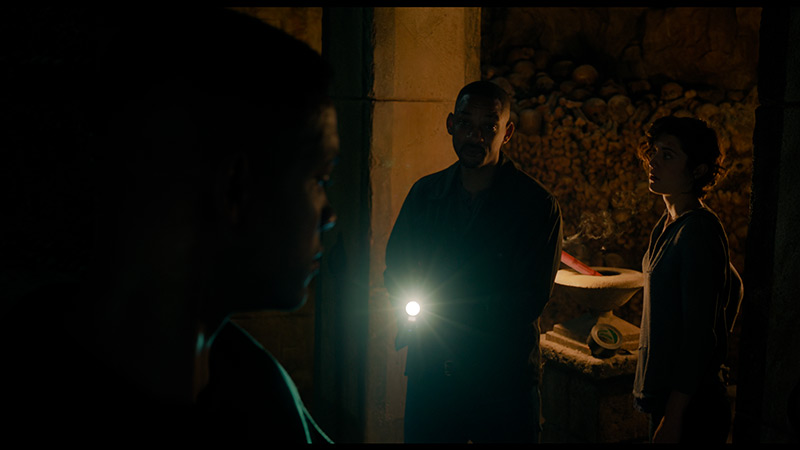
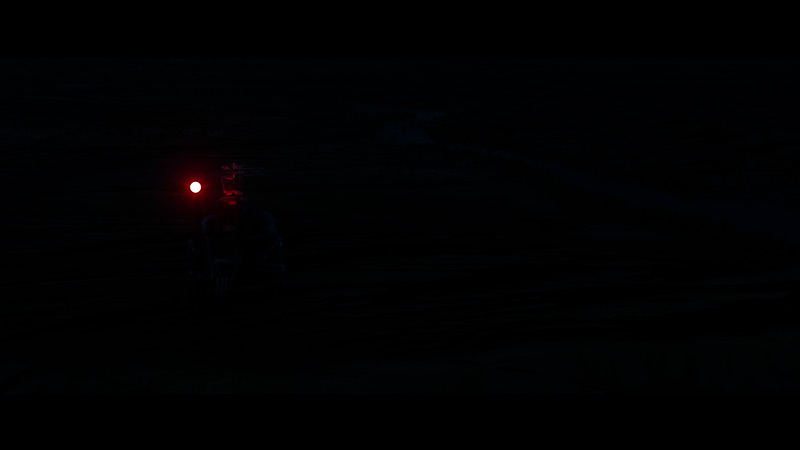
Scene from the movie “Pan” (about 2800 nits)


Scene from the movie “Billy Lynn” (about 1100 nits)


The photos show two HDR10 movies. 'Pan' is one of the brightest productions ever made, while 'Billy Lynn' (soldier) has brightness typical of streaming (Netflix, Prime, HBO MAX). Notice the intensity of effects and detail in whites.
Static HDR10


The photos present the visibility of white details in various HDR formats. They do not show brightness differences between TVs (these can be compared in the previous gallery).
Dynamic: HDR10+
Dynamic: Dolby Vision


The photos present the visibility of white details in various HDR formats. They do not show brightness differences between TVs (these can be compared in the previous gallery).
HDR luminance chart:
Philips OLED761
Philips PUS8359 (IPS)
Luminance of RGB colors
The quality of HDR effect on the Philips PUS8359/12 television is also not impressive. A brightness level of 280 nits is too low, resembling standard SDR more than true HDR, which is clearly visible on the five tested images. Additionally, the television does not impress in terms of color gamut coverage – just 76% DCI-P3 is a result that can be considered weak, especially compared to other models in a similar price range.
Philips OLED761 uses the new-generation WOLED SE panels from LG Display, and in terms of HDR brightness it achieves results similar to its closest rivals, the Samsung S85H and the LG B6. Peak brightness is around 800 nits, which for an entry-level OLED is a solid result. Importantly, similar values also appear in movies. In scenes with small bright elements on a dark background we measured about 700-780 nits, so a flashlight, a specular highlight, or a lamp can clearly stand out. Combined with perfect black, this delivers a convincing HDR effect, especially during evening viewing. The panel’s capabilities, however, decrease as the bright area of the image increases. When a vast, sunlit landscape replaces isolated highlights, the TV can no longer maintain such high brightness. In a scene with an offshore drilling platform we measured 289 nits, and with even greater bright-area fill the result can approach about 200 nits. In practice this means a sun-drenched shot will look less spectacular than small lights in a night scene. Despite this limitation, the OLED761’s HDR performance deserves a positive assessment. It’s not a TV that will light up an entire room with every bright scene, but it can clearly show the difference between regular footage and HDR material. It performs best where bright accents appear on a darker background, because then the high brightness of individual elements and deep black combine for the best effect.
Colors
The Philips OLED761 also handles color well, because its panel covers the vast majority of the DCI-P3 gamut, which contains most of the colors found in HDR movies and TV series. As a result, in everyday viewing colors have proper saturation and the picture doesn’t look washed out. Limitations only become apparent in more demanding content that uses shades beyond DCI-P3 and within the wider BT.2020 color space. In such shots the most intense reds and greens can look less impressive than on QD-OLED, SQD-Mini LED, or RGB Mini LED displays. Another issue is saturation retention at high brightness. The WOLED panel uses an extra white subpixel to help brighten the image, but it doesn’t increase the brightness of the colors in the same way. Therefore very bright colors may wash out slightly, which is most noticeable on vivid neon signs or colorful light effects. These are limitations mainly visible in specific, demanding scenes. For most movies and TV shows watched regularly, the OLED761 is capable of delivering well-saturated, attractive colors.
Factory color reproduction
4/10
6.5/10


This illustrative image shows how colors change after professional calibration. If you can see the difference, you can order it from SkalibrujTV – it's our own service.
Factory mode
After calibration
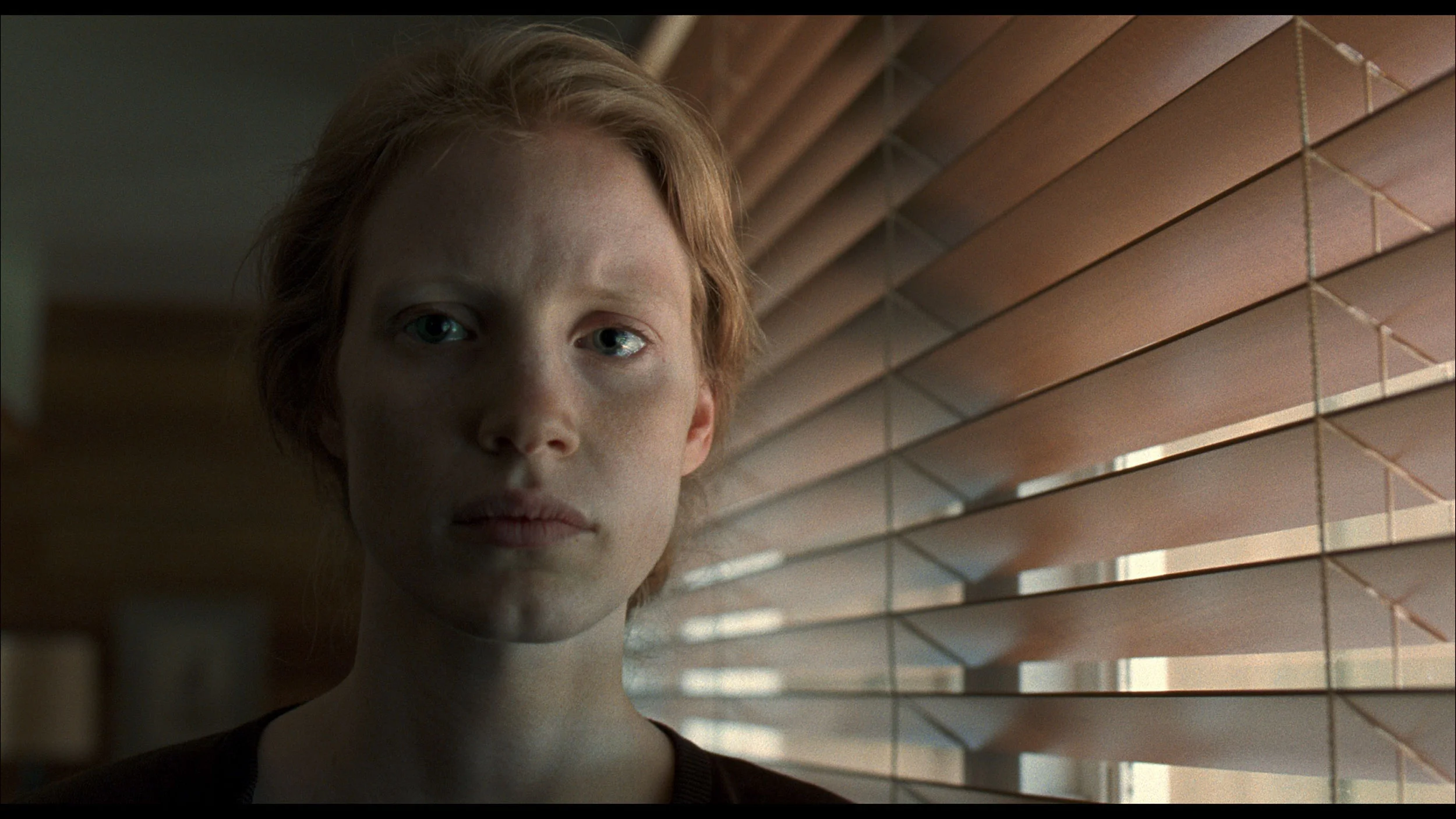
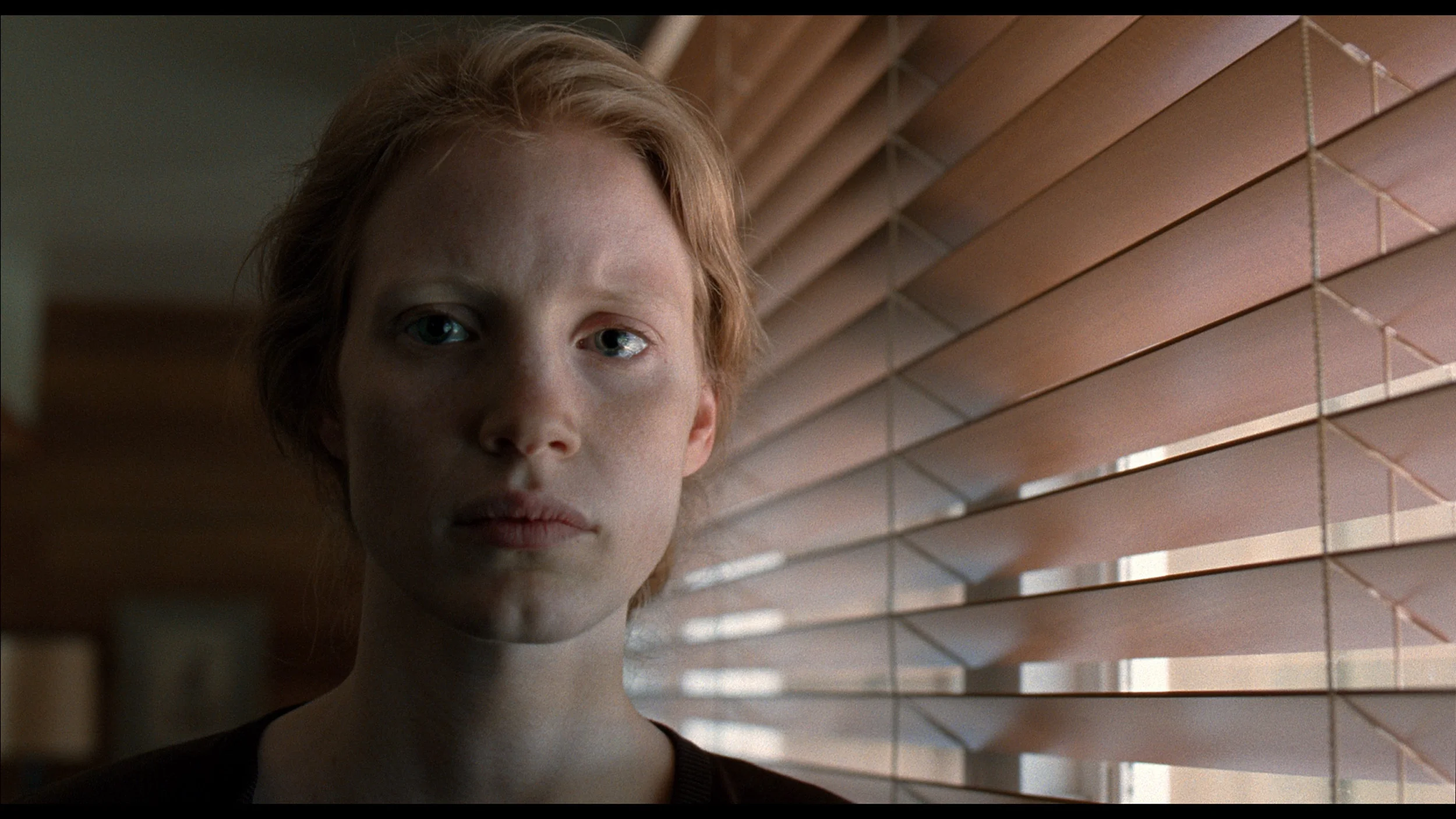
This illustrative image shows how colors change after professional calibration. If you can see the difference, you can order it from SkalibrujTV – it's our own service.
Factory mode
After calibration
The "Film" mode turned out to be the most faithful in terms of compliance with the source material used in our tests. However, like other factory modes, it also had its drawbacks. In both SDR and HDR materials, we noticed issues with white balance, where the dominance of green and red resulted in a yellowish tint. This effect was particularly visible in the form of yellowed whites and unnatural skin tones. The "ColourChecker" palette test showed that every color was shifted towards warmer tones, which affected color accuracy. A key aspect of the image is also contrast and brightness, which can be evaluated by analyzing gamma charts and the EOTF curve. On the gamma chart, we observed significant deviations – both too high values causing loss of detail in the shadows and too low values leading to a drastic decrease in contrast. Compared to gamma, the EOTF curve performed better, only slightly brightening the image, which had a less negative impact on overall quality.
The factory settings of the OLED761's Film mode deliver a fairly pleasant picture, although colors are not completely neutral. In SDR material there is primarily a lack of blue, and in parts of the range red is reduced as well, causing whites and grays to take on a slightly yellow-green tint. You'll notice this most easily on neutral surfaces, which look warmer than they should. The colors themselves perform reasonably well, and most tested samples do not show large errors. So it's not a case where the tint completely changes the look of the movie you're watching. More attention is needed for how brightness is handled in SDR. Across most of the range the TV slightly darkens the image, which can make faces and background elements appear heavier and render details in darker areas less readable. At the same time, shades just above black are lifted. These two characteristics can occur together: the very deepest shadows become too visible while the rest of the scene is a bit too dark. In HDR a lack of blue is also visible, especially in the brighter parts of the image. Whites therefore take on a warm, yellowish tint that can be noticeable on clouds or snow. Darker tones have much better white balance, so the degree of this tint changes with scene brightness. Out of the box the OLED761 performs decently, but measurements show that white neutrality and how brightness is reproduced still require refinement through calibration.
Color reproduction after calibration
5/10
9/10


The photos show how movies look on the TV. Pay attention to black detail visibility, colors, and shadow tint.


The photos show how movies look on the TV. Pay attention to black detail visibility, colors, and shadow tint.
Philips, both in its cheaper and more expensive models, offers a wide range of tools for image calibration. We used them to improve the quality of the displayed image, although it was not as simple as it might seem. We managed to adjust the white balance, improve the gamma, and tune the EOTF curve; however, despite these actions, the deltaE errors were still at a very high level. The main causes are limited coverage of the DCI-P3 color palette and low maximum brightness, which significantly affected the final result. Although the overall presentation looks much better, the design features of the TV did not allow us to achieve spectacular results.
After calibration the Philips OLED761 performs very well. The white balance was set almost perfectly, removing the previous color cast, so faces, whites and grays look more natural. The improved gamma means the image is no longer unnecessarily dark and it's easier to see detail in darker areas. Colors are reproduced with high accuracy, which, combined with deep blacks, produces a very pleasing picture for evening movie watching. It's clear that even Philips' entry-level OLED has considerable potential that is worth exploiting by fine-tuning the settings. In HDR the luminance response tracks the reference closely over most of the range, so most scenes retain their proper appearance. There is a slight lift in tones just above black and a tendency to render the brightest highlights a bit too strongly. These are, however, observations about specific parts of the image. In the most demanding shots some bright detail may still be missing, but the overall result after calibration is decidedly successful. The OLED761 can deliver a natural, well-balanced picture that lets you focus on the movie.
Smoothness of tonal transitions
8.4/10
7.4/10


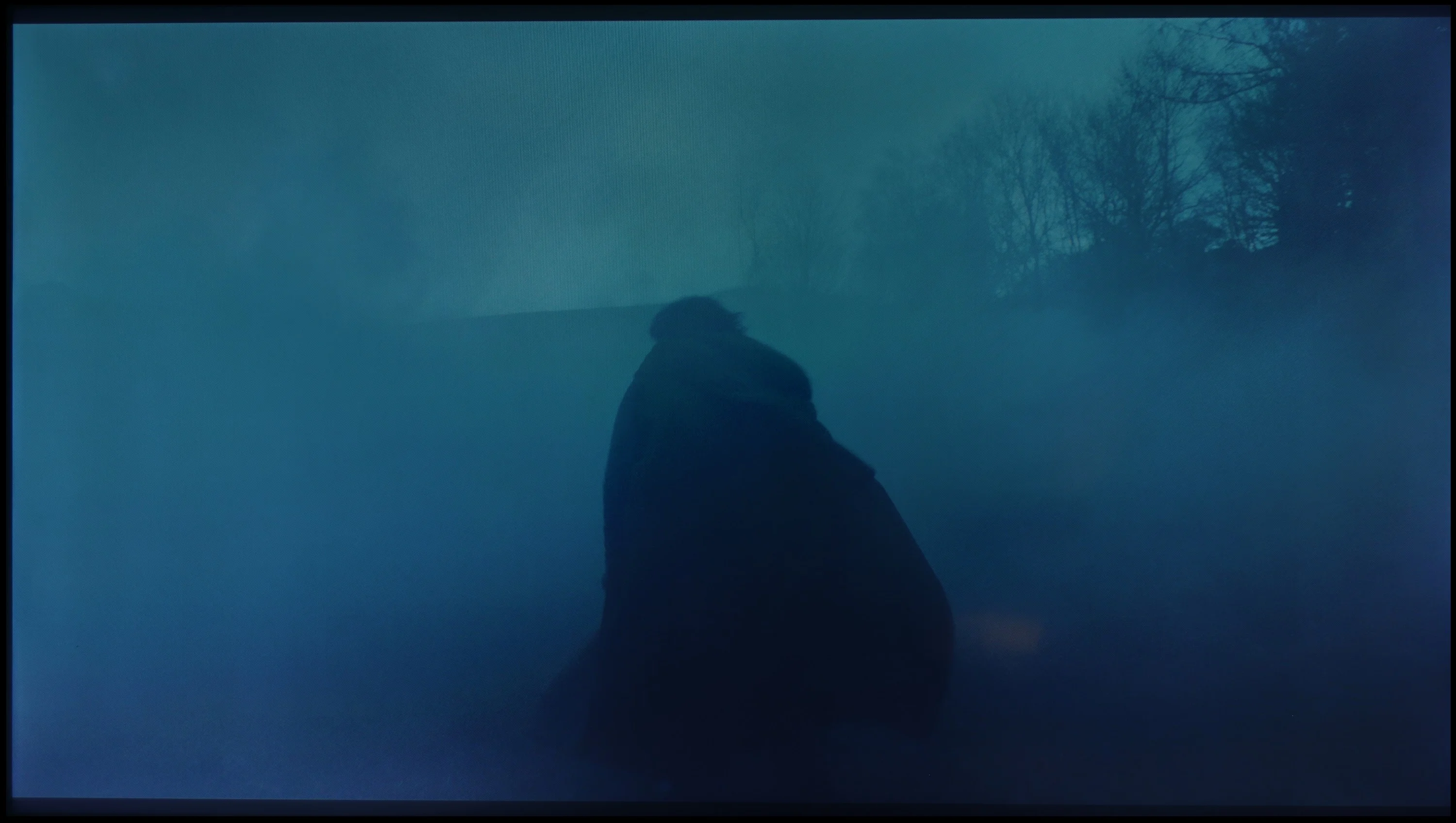


These are selected scenes that show smooth tonal transitions from one color to another. If you see distinct banding, it’s the TV panel’s fault.

These are selected scenes that show smooth tonal transitions from one color to another. If you see distinct banding, it’s the TV panel’s fault.
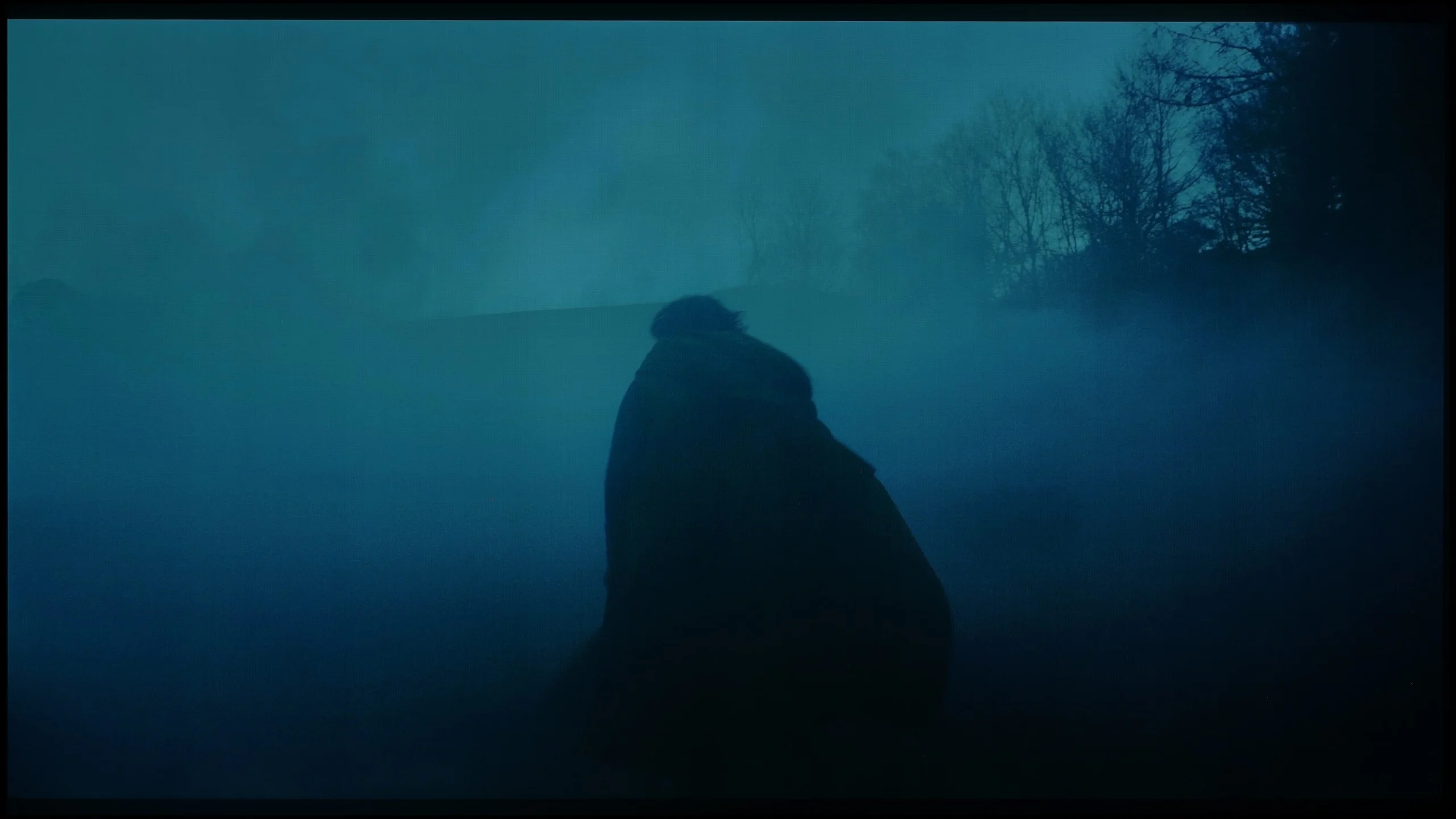
These are selected scenes that show smooth tonal transitions from one color to another. If you see distinct banding, it’s the TV panel’s fault.
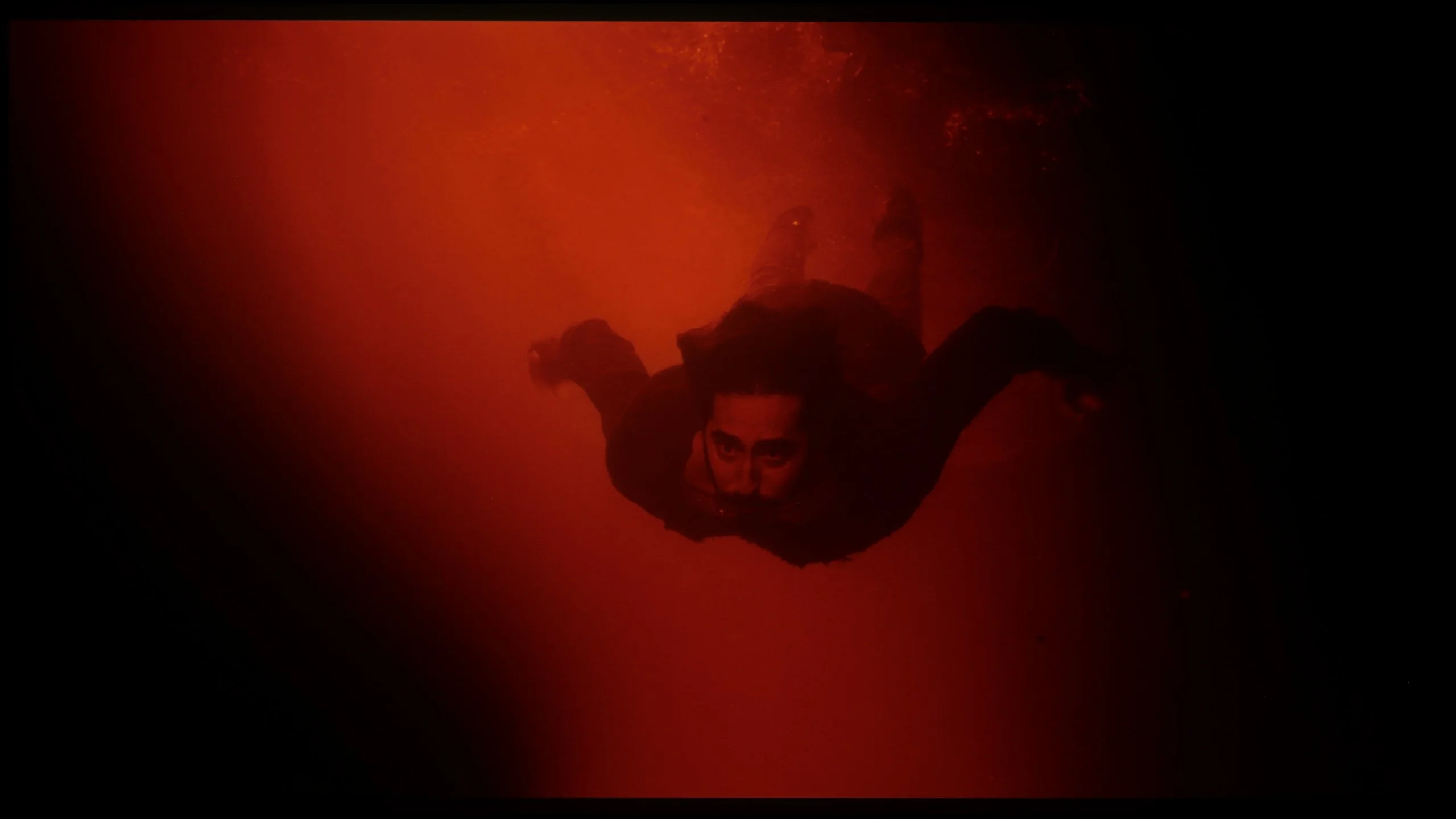
These are selected scenes that show smooth tonal transitions from one color to another. If you see distinct banding, it’s the TV panel’s fault.
The gradient of tonal transitions in the Philips PUS8359/12 television is at a good level, without obvious issues that could negatively affect the quality of content viewing. Upon closer inspection, one can notice minor imperfections in bright, colorful transitions, but they are subtle enough that most users should not notice them or consider them a problem.
Philips OLED761 handles tonal transitions quite well, although on bright gradients you can notice slight boundaries between shades. They appear in most of the bright shots we checked, but are subtle enough that during normal viewing they shouldn't draw too much attention away from the movie. In darker scenes the imperfections are most visible during gradual fades to black and in the shot with red water, where the color transitions could be smoother. More than the gradation itself, panel nonuniformity can be more distracting. In dark scenes it shows up as fairly distinct bands, which make a uniform background look less even than it should. That's a different issue than the visible boundaries between shades, although the two can overlap during a viewing. We've seen similar banding so far in every OLED we've tested with the new WOLED SE panel, so this isn't a problem unique to the OLED761. The severity can vary between units.
Image scaling and smoothness of tonal transitions
6/10
7.5/10


Smooth transition function
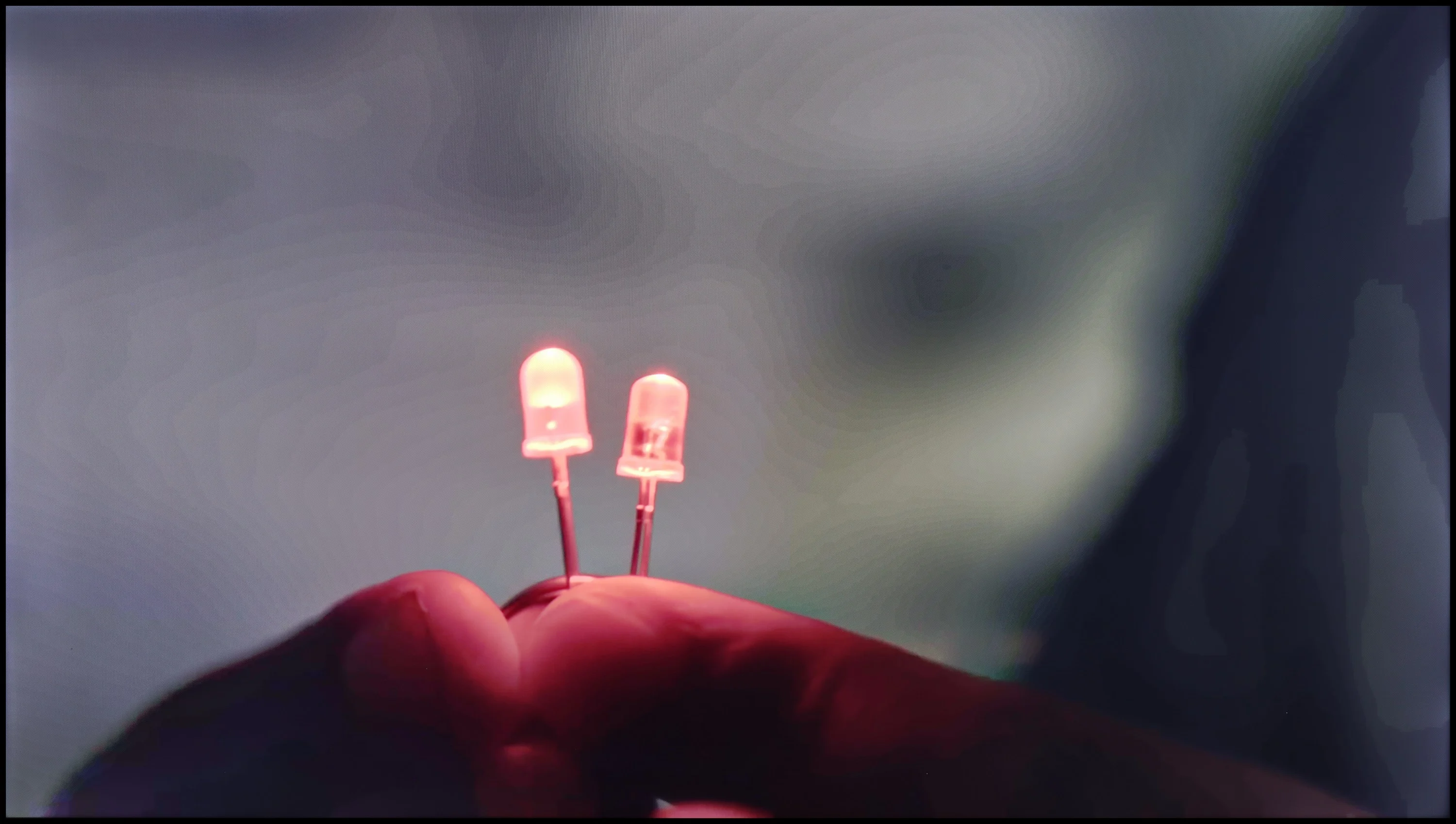
The match photo shows how the TV smooths weak tonal transitions in low-quality video.
Image scaling SD (576i)


The model photo shows how it handles upscaling of SD material.
In this paragraph, we will look at two functionalities. We will once again take a look at the function responsible for tonal transitions, but we will also check how the television handles image scaling. The option responsible for smooth gradation is the one called "Distortion Reduction." As we established, it quite effectively smooths out the choppiness. However, we must point out two things: we cannot enable it for HDR materials and that it blurs details in films. The tested television cannot boast the best image scaling. There is a noticeable overall blurriness of the image, but, worse, it blurs details. This is particularly visible on the branches and the hair of the model. A characteristic white halo around the character is also noticeable.
Philips OLED761 does a pretty good job of improving lower-quality material. Its Pentonic 800 processor effectively smooths visible transitions between shades, which often appear in heavily compressed footage. This is handled by the "Artifact Reduction" setting. When enabled, banding on a uniform background becomes less noticeable, and importantly this doesn't come at the cost of noticeably blurring fine detail. It's a feature worth using when the source quality leaves something to be desired. The upscaling itself has the characteristic Philips softness: lower-resolution material looks fairly gentle, and fine elements and edges lack a bit of sharpness. In the shot with the model you can see this in the hair and thin branches, which could be more clearly defined. A plus is the lack of overscan, meaning the edges of the image aren't cropped. Even with a low-resolution signal the TV shows the full frame.
Blur and motion smoothness
4/10
8.5/10
Blur (native resolution, maximum refresh rate):





Blur ():
Blur (4K@60Hz):



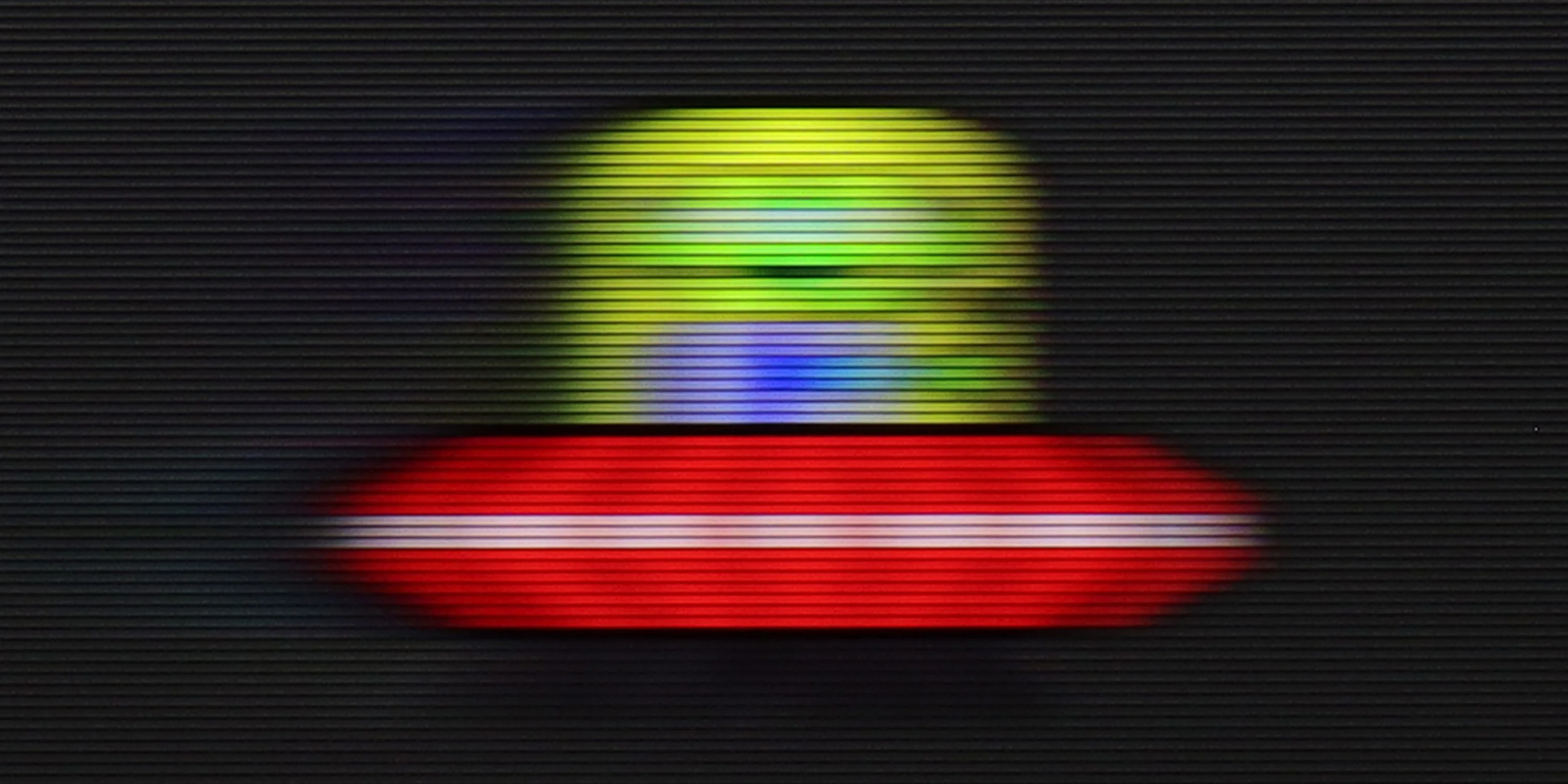
Philips PUS8359 is not the best choice for watching sports. The lack of even basic motion enhancement features means that the picture in dynamic scenes is not suitably clear. Despite using an IPS panel (43 and 55'), which theoretically should offer better sharpness than VA panel variants, there is no noticeable improvement in terms of motion blur. In fast-moving images, it is clear that the UFO character is distinctly blurred, which indicates that the television does not cope well with maintaining sharpness in dynamic shots.
Philips OLED761 performs very well in fast-moving scenes. Thanks to the pixels' instantaneous response, moving objects leave virtually no trailing, which both sports viewers and gamers will appreciate. The 120 Hz panel also preserves good motion clarity, as seen in the UFO test: edges remain clear whether an object moves across a bright or dark background. With a 60 Hz signal there is more blur, but that is mainly due to how motion is displayed at the lower refresh rate, not because of a slow panel response.
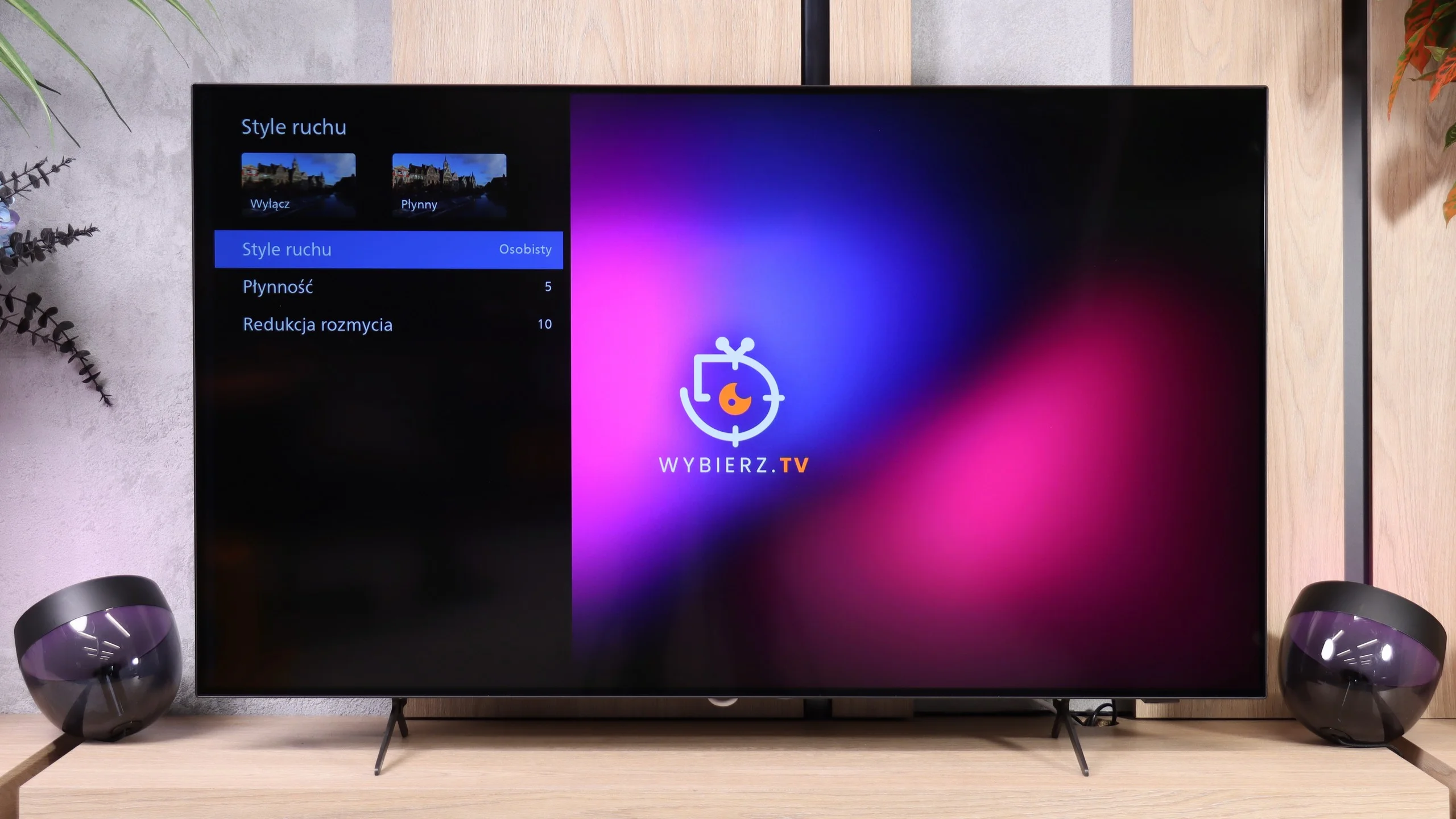
When watching films you can use the "Motion Styles" settings, which include the "Smoothness" and "Blur Reduction" sliders. They let you tailor the image to your preferences, from preserving characteristic cinematic motion to heavily smoothing it. A slight increase in smoothness is especially helpful for slow camera moves, which can look jumpy on a fast OLED. There is no BFI function, that is, black frame insertion to improve motion clarity, but even without it the OLED761 performs very well in this area.
Console compatibility and gaming features
4.7/10
10/10
- ALLM
- VRR
- VRR range48 - 60Hz40 - 120Hz
- Dolby Vision Game Mode
- Correct implementation of HGIG
- 1080p@120Hz
- 1440p@120Hz
- 4K@120Hz
- Game bar
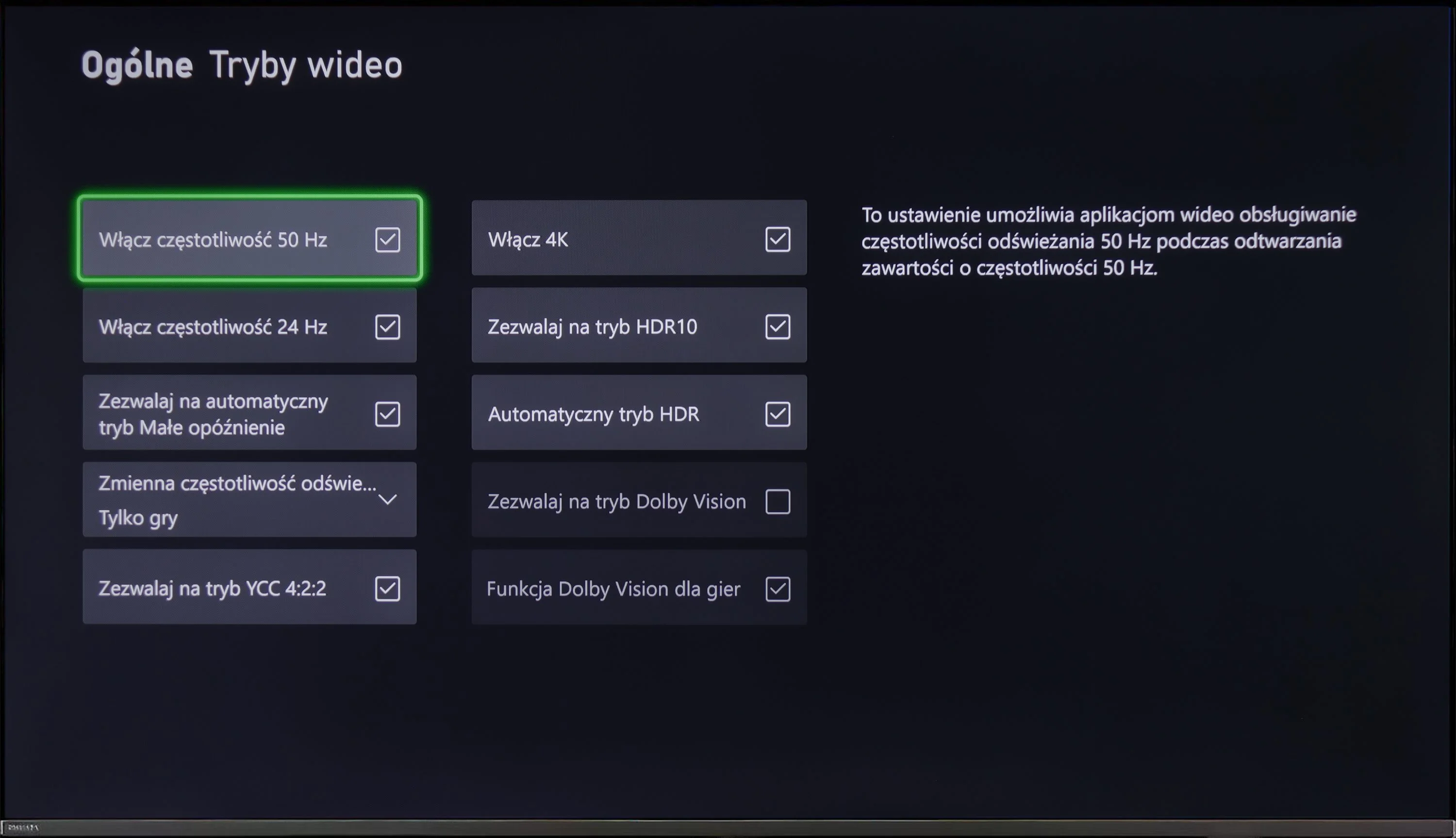
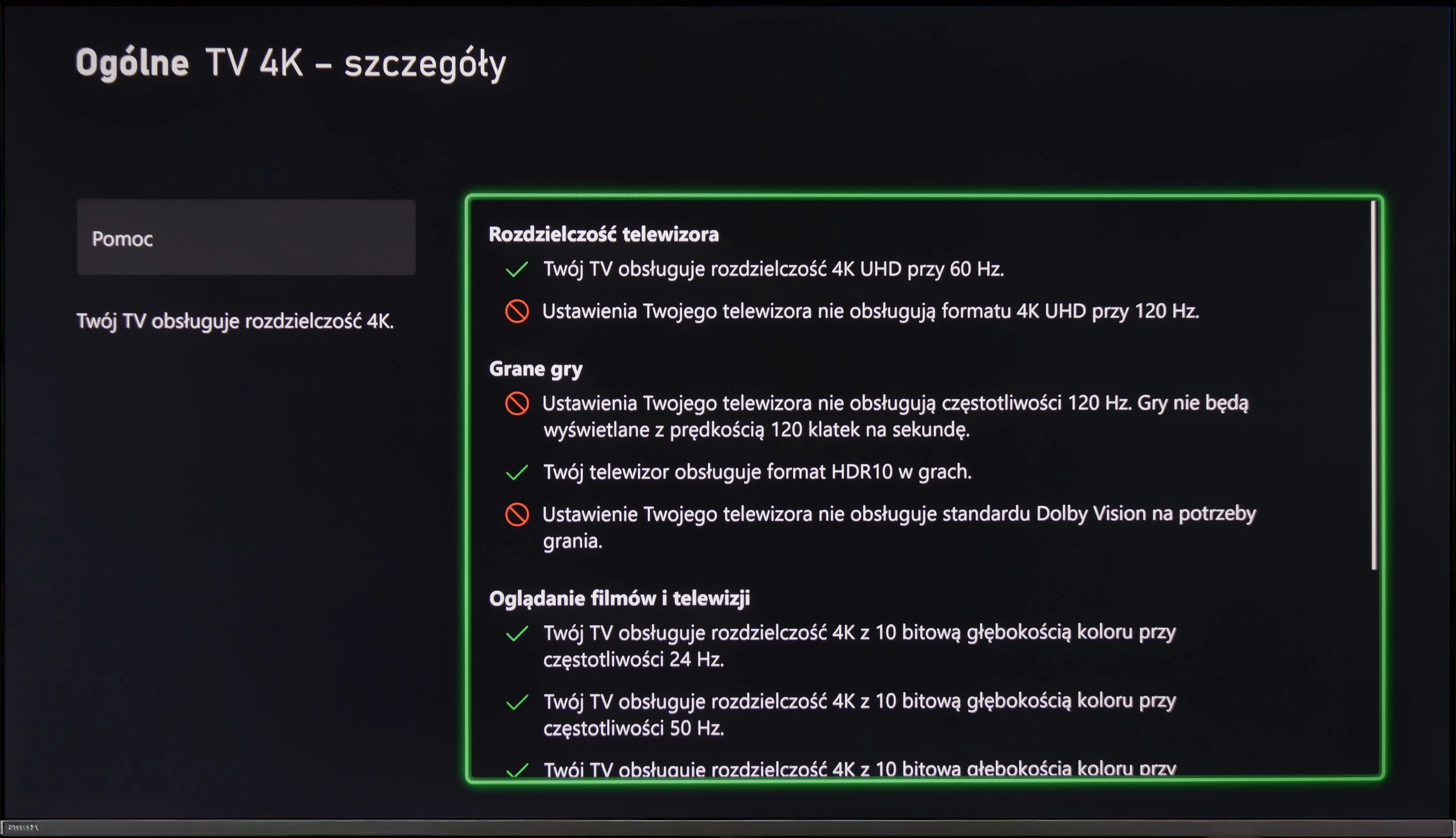
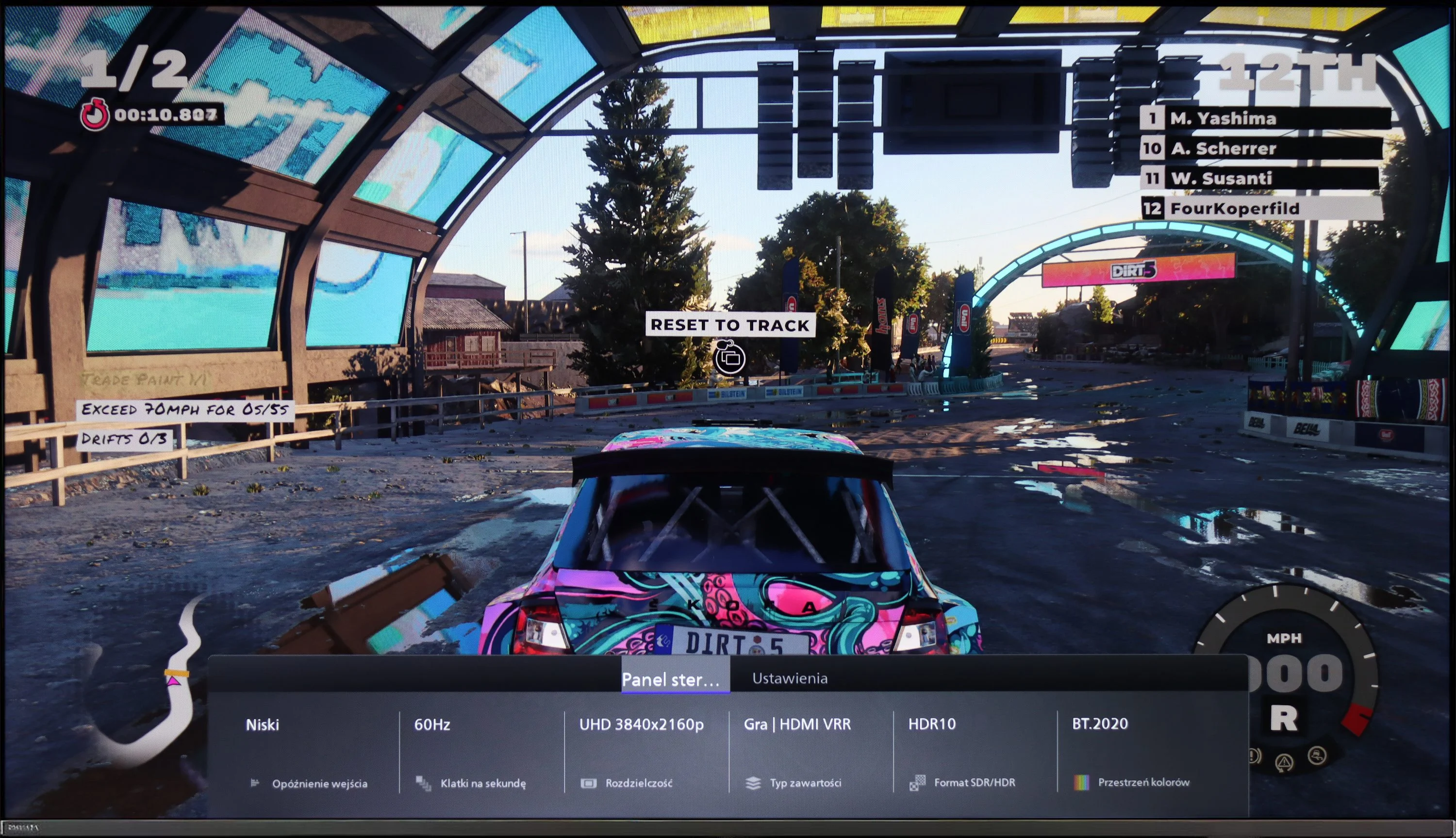
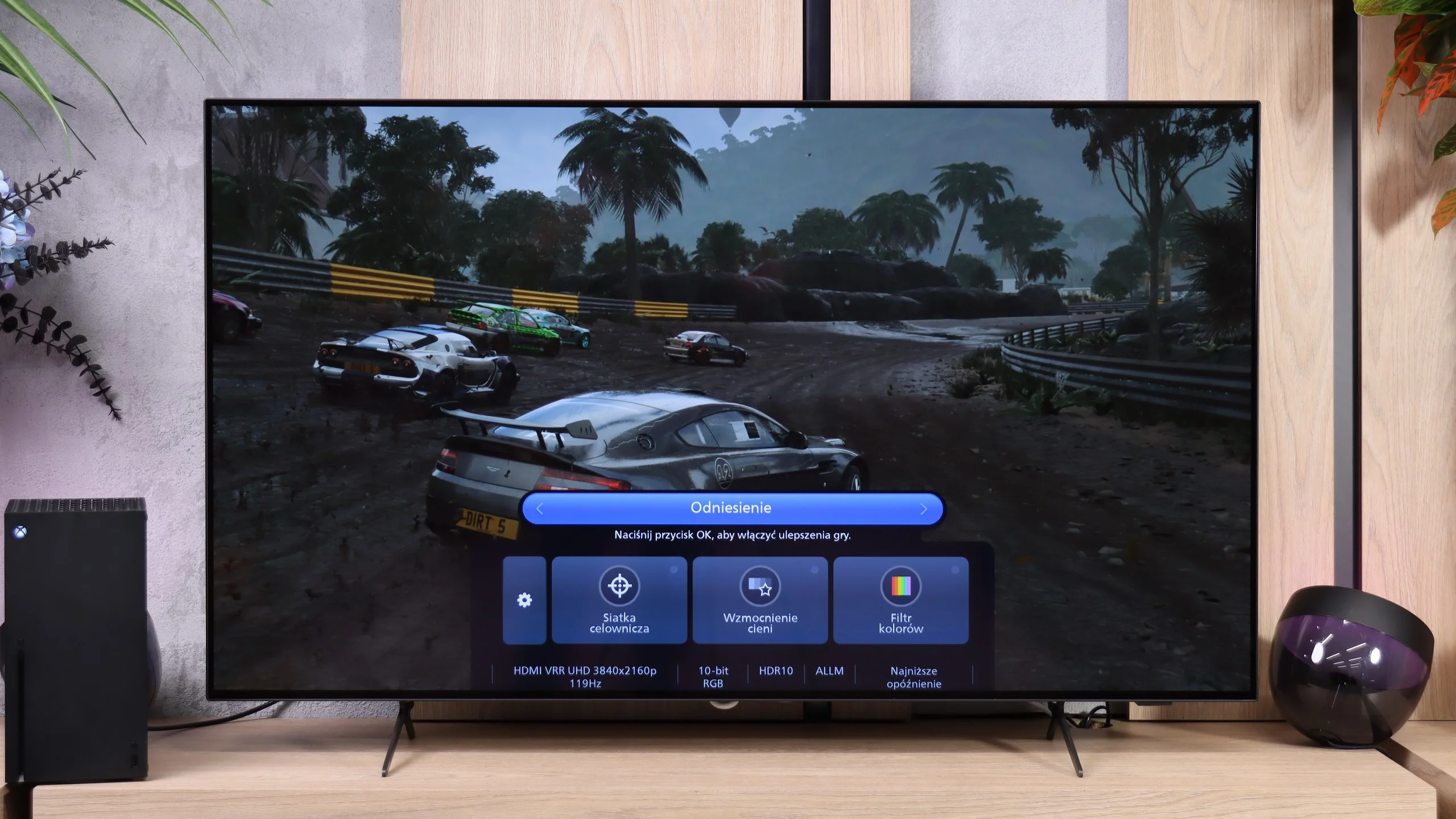
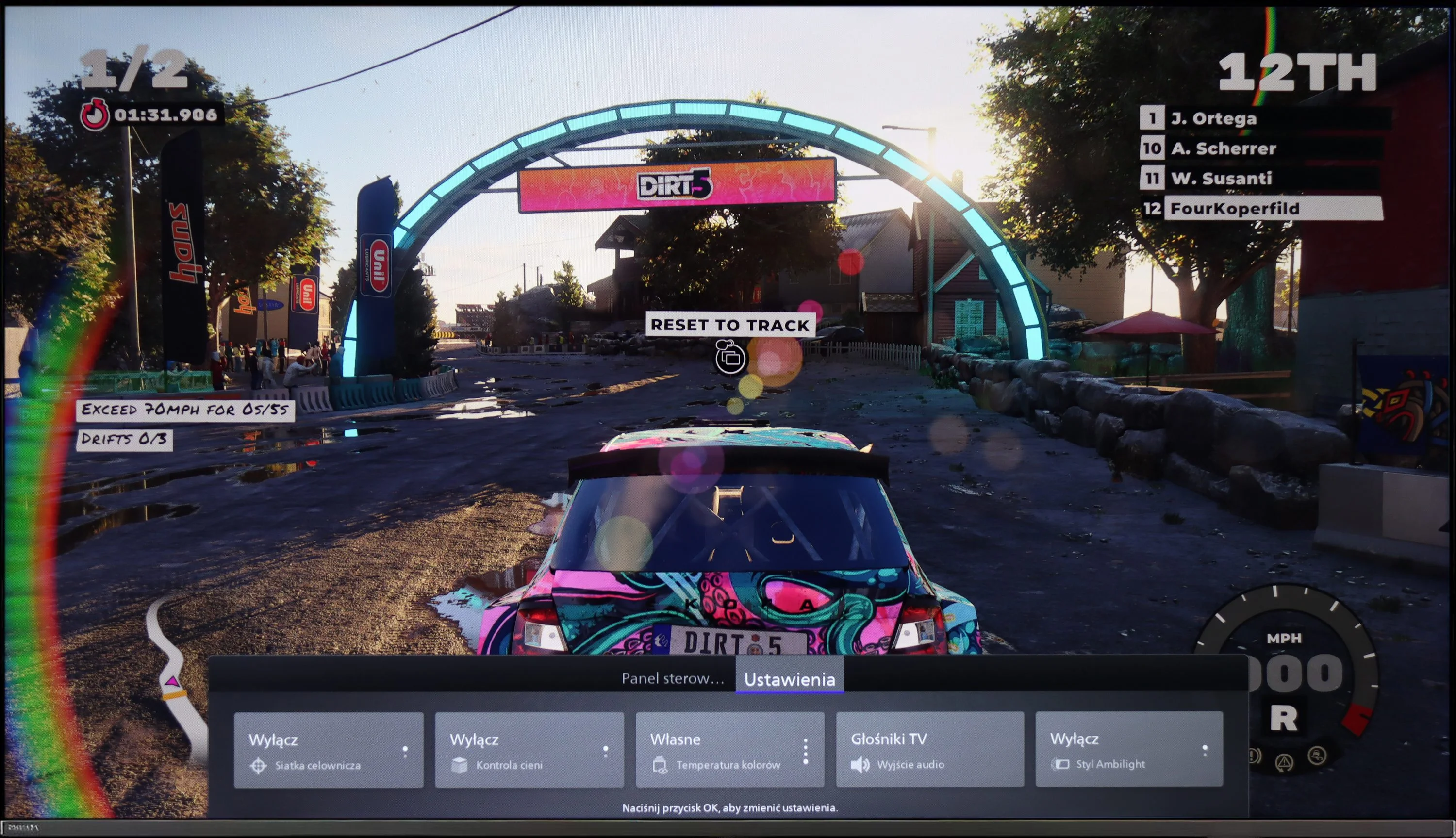
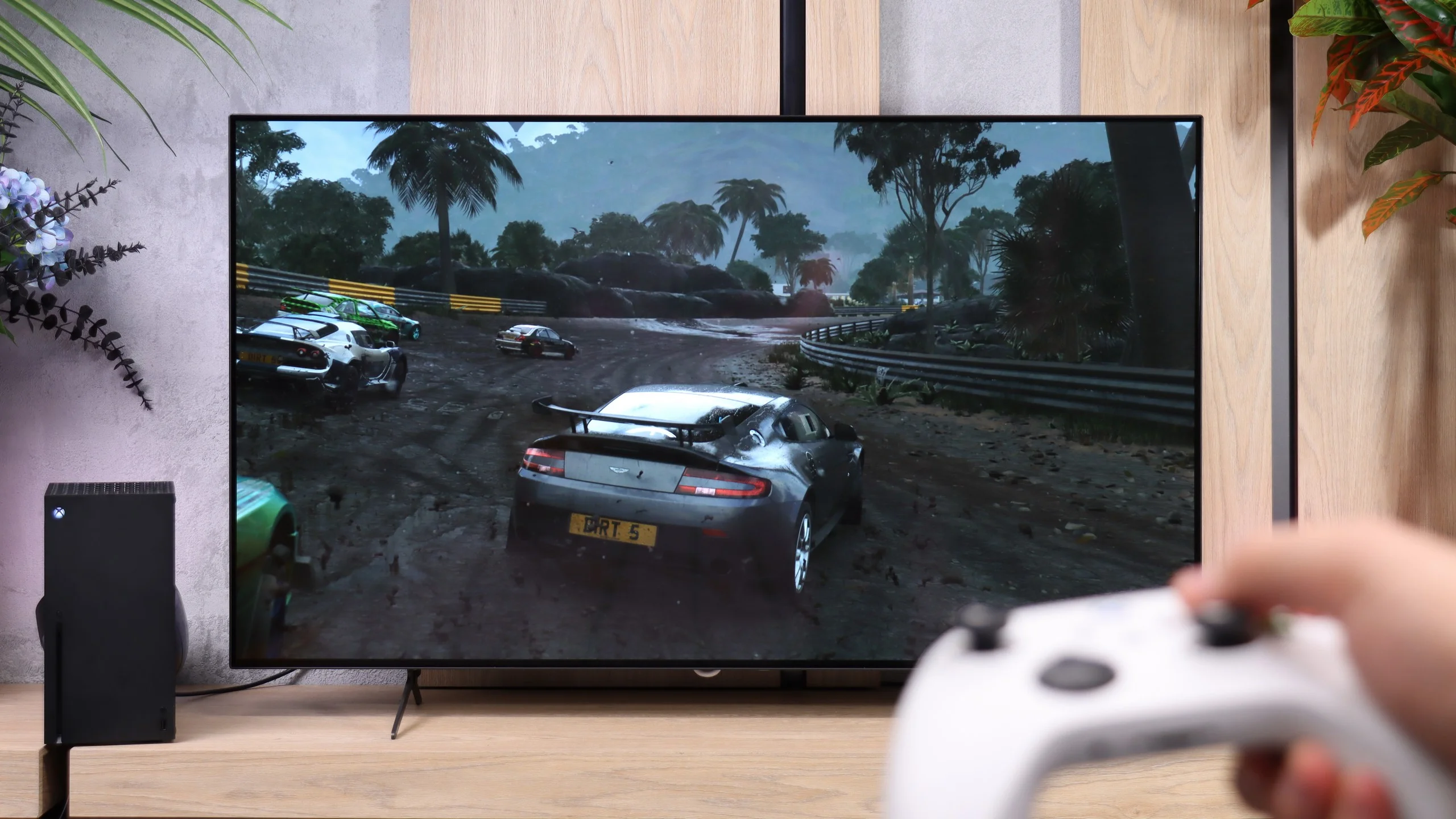
In terms of compatibility with consoles, the Philips PUS8359 is mainly suitable for casual gamers. Although the TV is equipped with an HDMI 2.0 port, it offers features such as Auto Low Latency Mode (ALLM), Variable Refresh Rate (VRR), and Game Bar. ALLM automatically switches the TV to low latency mode, facilitating quicker reactions during gameplay, while VRR smoothly adjusts the refresh rate, eliminating the issue of screen tearing. Game Bar provides quick access to game settings and real-time monitoring of parameters; however, in our opinion, it performs worse compared to competitors' solutions.
However, more demanding gamers may feel underwhelmed. The Philips PUS8359 does not support advanced HDR formats in games or higher refresh rates, which is due to the use of a 60 Hz panel. These shortcomings limit the TV's capabilities in delivering smooth and detailed experiences during fast-paced, dynamic gameplay.
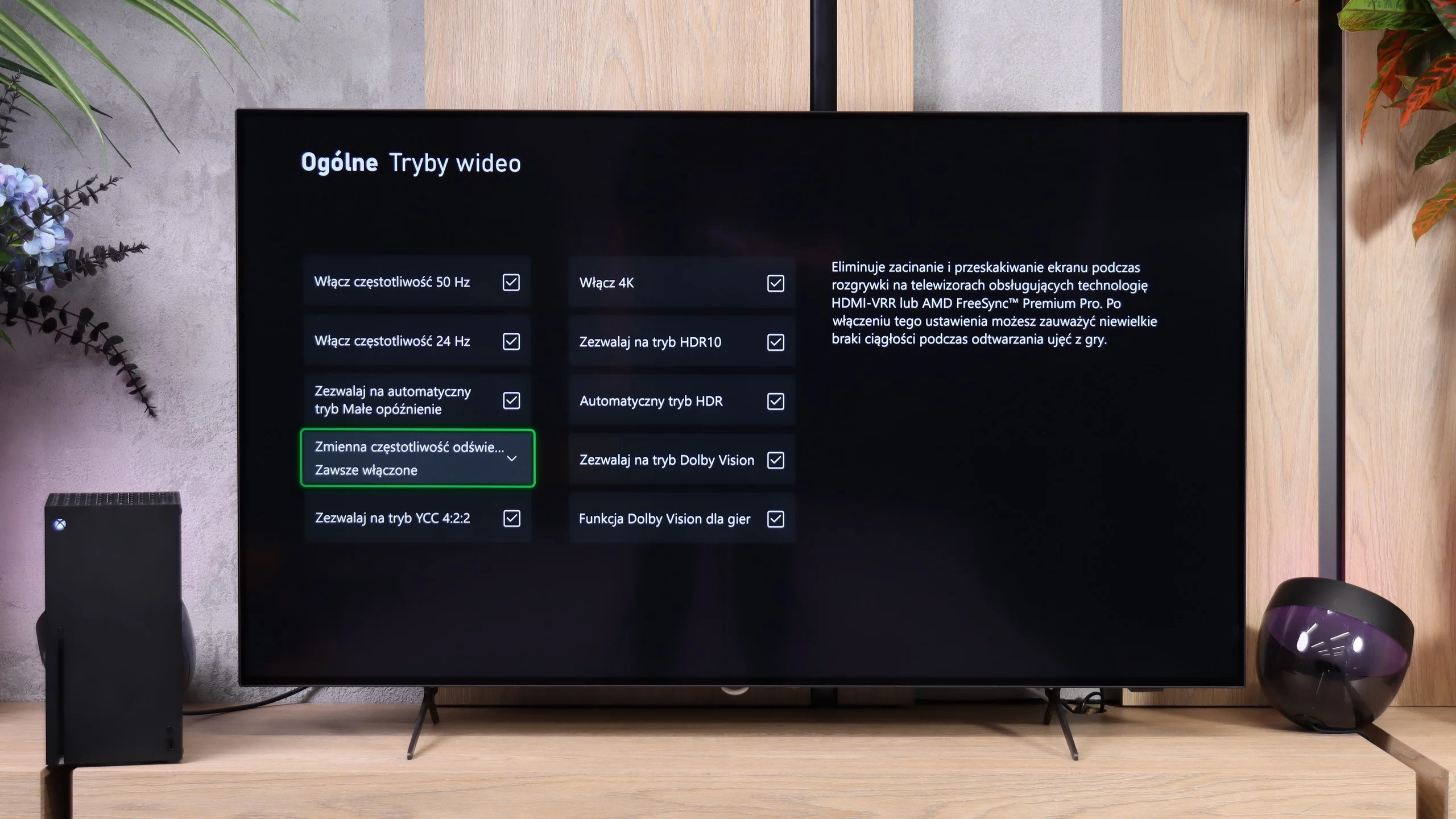
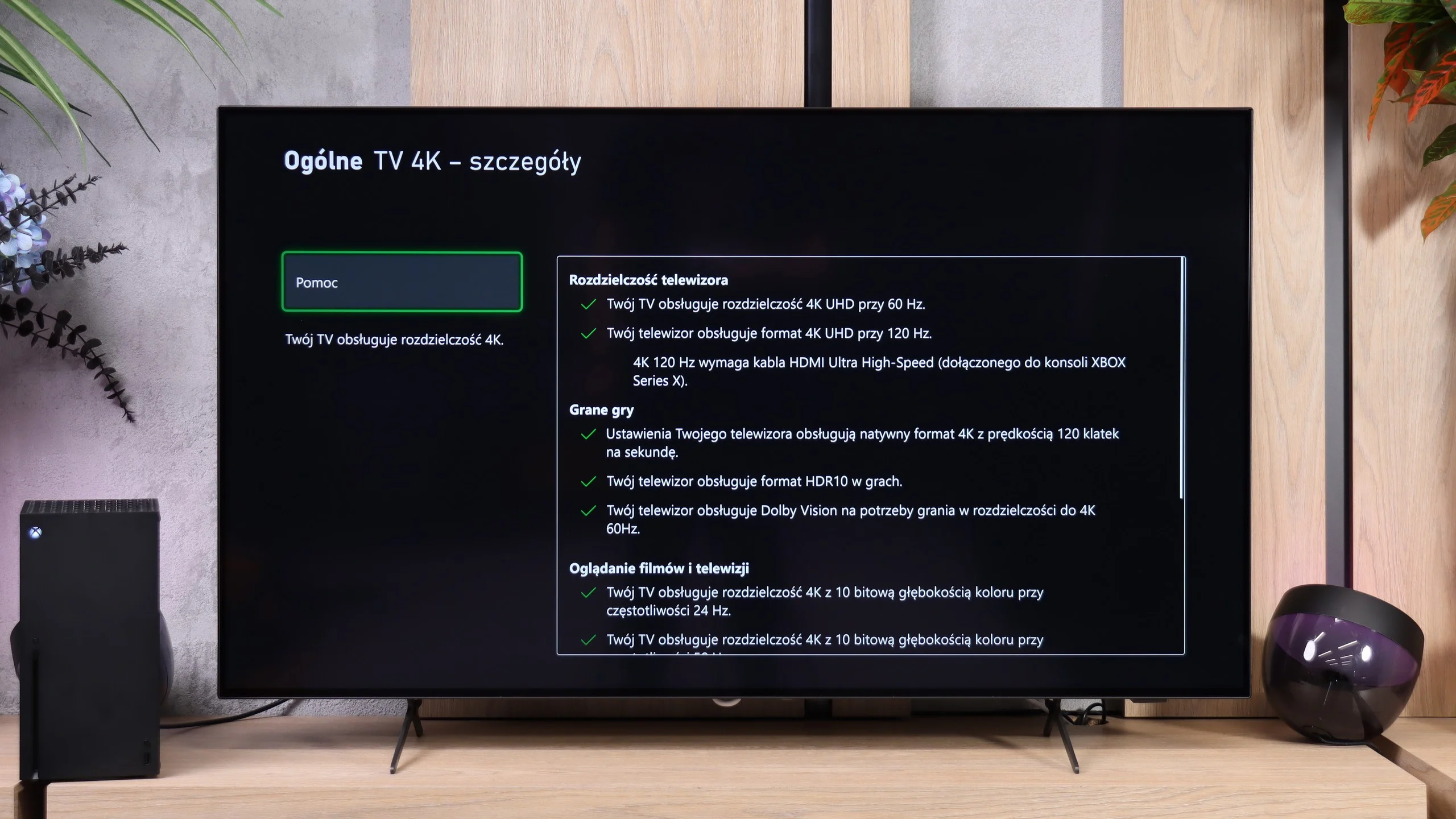
Although the OLED761 is Philips' cheapest OLED this year, there are few compromises in its gaming features. The TV supports 120 Hz gaming in Full HD, 1440p, and 4K, so it can take advantage of high frame-rate modes on consoles. The fast OLED panel complements this well, so even during fast-paced gameplay you don't see smearing or trailing behind objects. When the console doesn't hold a steady frame rate, VRR operating from 40–120 Hz helps. The image doesn't tear during quick camera turns, and frame-rate fluctuations are less noticeable.
Philips also took care of convenience. When you start a game, the TV can automatically switch to a low-latency mode, and the most important settings are found in the handy Game Bar. You can check image parameters there, enable an on-screen crosshair, or brighten shadows if it's hard to spot an enemy in a dark area. The Game Bar itself may not be the flashiest on the market, but it does the job. There's also support for Dolby Vision for games and a properly implemented HGiG, which helps match the console's HDR settings to the screen's capabilities. So in terms of features, the OLED761 offers a lot.
Input lag
10/10
9.4/10
SDR
HDR
Dolby Vision
Philips PUS8359 offers an exceptionally low input lag of below 10 ms, which is an excellent result. This makes the TV ideal for fast-paced games, ensuring quick reactions and smooth gameplay, which will surely be appreciated by both casual and more demanding gamers.
Input lag on the OLED761 depends not only on the refresh rate but also on whether you're playing in SDR or HDR. SDR performs best: we measured 14 ms at 60 Hz and just 5 ms at 120 Hz, both in Full HD and 4K. Those are excellent results that let you enjoy quick controller response even in fast-paced games.
With HDR enabled the lag rises to 31 ms at 60 Hz and 13 ms at 120 Hz. Dolby Vision at 60 Hz gives a similar result of 30 ms. You can still play comfortably, especially in more relaxed titles, but it's a shame that turning on HDR comes with this drawback.
Compatibility with PC
6/10
7.6/10
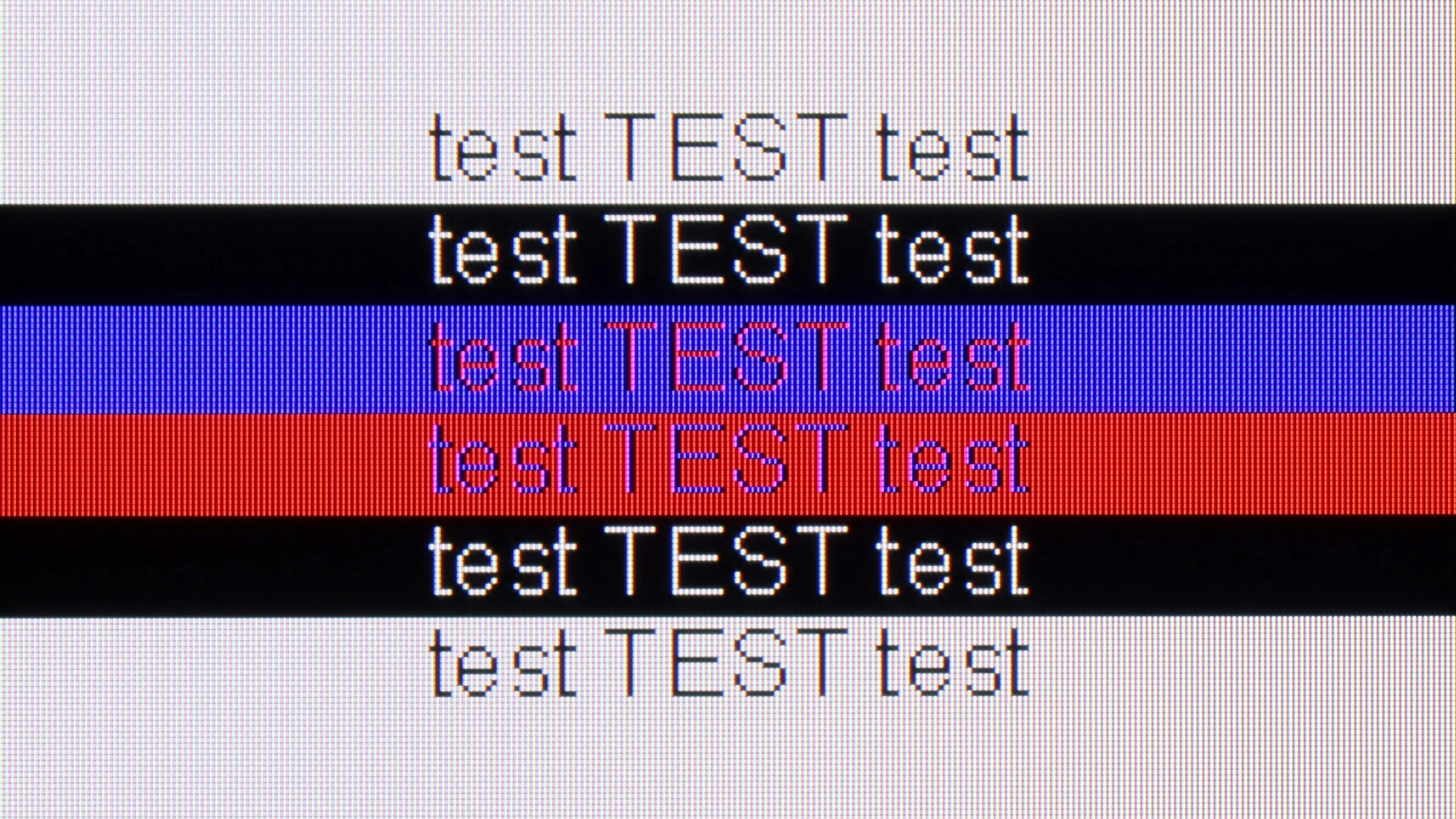
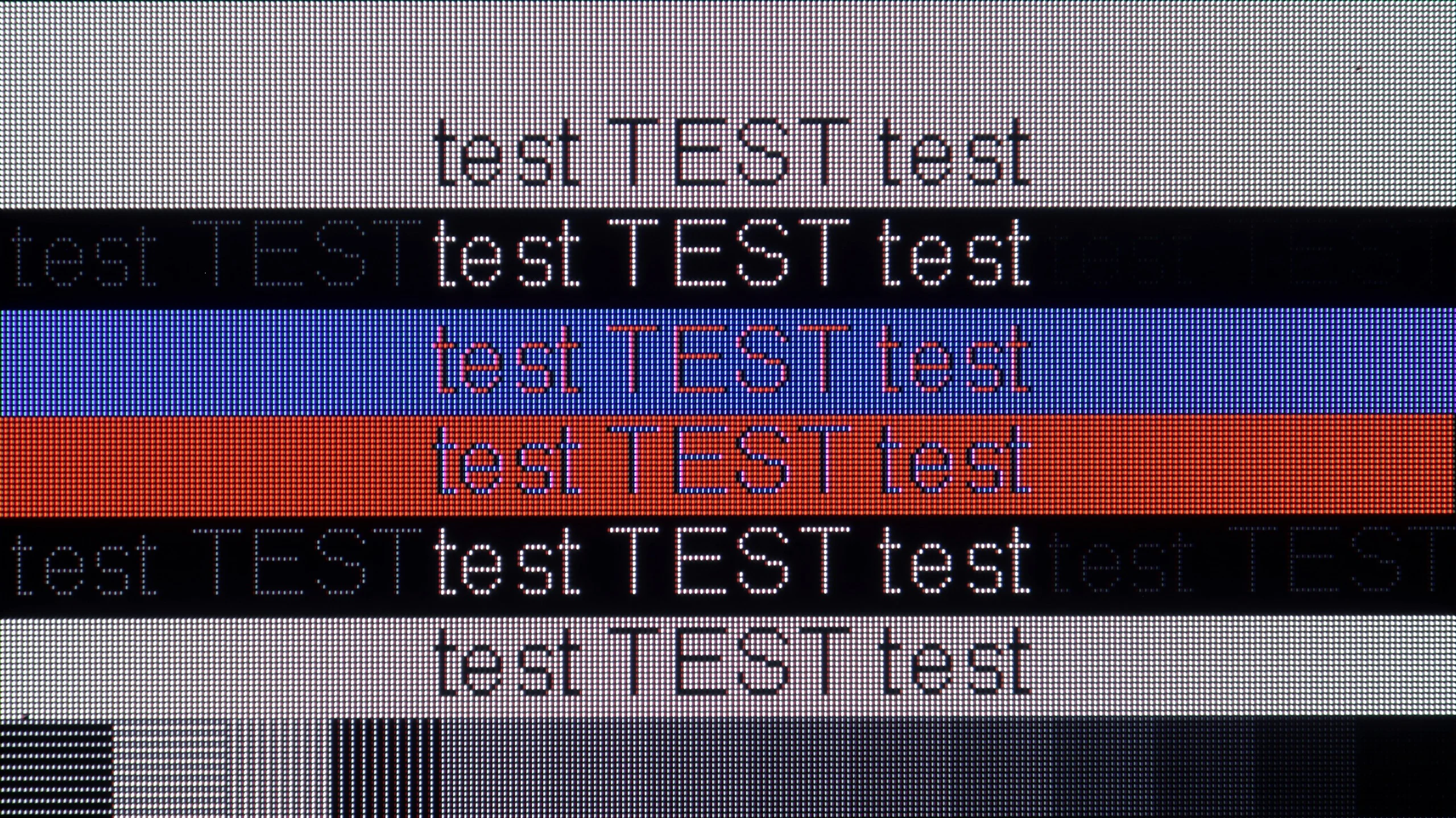
The photo shows the legibility of small fonts. Ideally, lines should be the same thickness on both light and dark text, with minimal pixel gaps.
The Philips PUS8359/12 TV with an IPS panel offers quite good font readability thanks to support for chroma 4:4:4, making it suitable for office work and everyday computer use. Although the low input lag makes it gamer-friendly in terms of response time, the lack of support for G-Sync and the 60 Hz panel may not meet the expectations of more demanding users. For those looking for a TV for gaming, this can be a compromise – fast response is present, but the lack of higher refresh rate and adaptive sync affects its rating in the gaming category.
The Philips OLED761 performs well when connected to a PC. It properly supports 4:4:4 chroma, so small text is readable and colored letters retain their sharpness. When viewed up close, however, you can notice slight red fringes on the edges of characters. These stem from the RGWB subpixel layout used in the WOLED panel, which typical font-smoothing methods are not optimized for. This may not bother you while browsing the web, but if the TV will be used mainly for working with text, it’s worth taking into account.
In games the OLED761 performs noticeably better. The panel’s fast response and support for G-Sync and FreeSync let you enjoy smooth motion without annoying smearing or tearing. At 4K and 120 Hz in SDR we measured just 5 ms of input lag, so controls feel very responsive. Keep in mind that enabling HDR increases input lag, as noted earlier. The main drawback is the refresh rate capped at 120 Hz. The OLED761, like other tested models with the WOLED SE panel, does not offer an extra 144 Hz mode or higher refresh rates at reduced resolution. For most people this won’t be a serious issue, since 120 Hz already delivers very good smoothness. Only gamers with powerful PCs aiming to squeeze out the highest possible frame rates may feel a bit shortchanged.
Viewing angles
6.3/10
7.5/10
The viewing angles on the Philips PUS8359 TV are quite good, thanks to the use of an IPS panel (43' and 55'). The image remains readable and clear even when viewed from a greater angle, which is beneficial when watching content in a larger group or in rooms with non-standard layouts.
The OLED761 looks very good in this respect. You can sit off to the side and still see deep blacks and rich colors, without the noticeable degradation associated with VA panels. That's one of OLED's advantages, and it's easy to appreciate when watching with others. You don't have to sit in the middle of the couch for the movie to look the way it should. In that regard, only QD-OLED panels are better.
Daytime performance
4.3/10
4.5/10
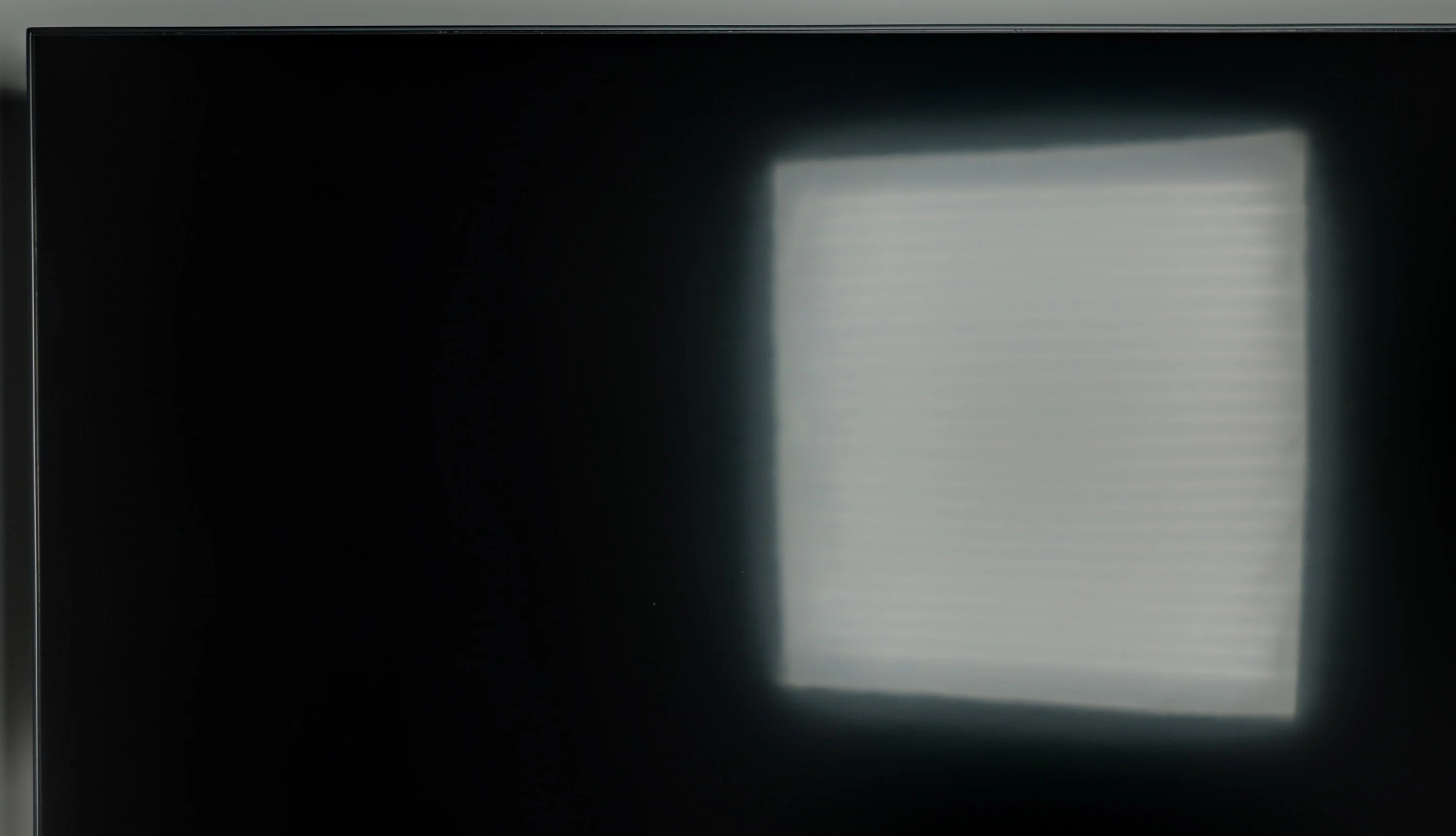
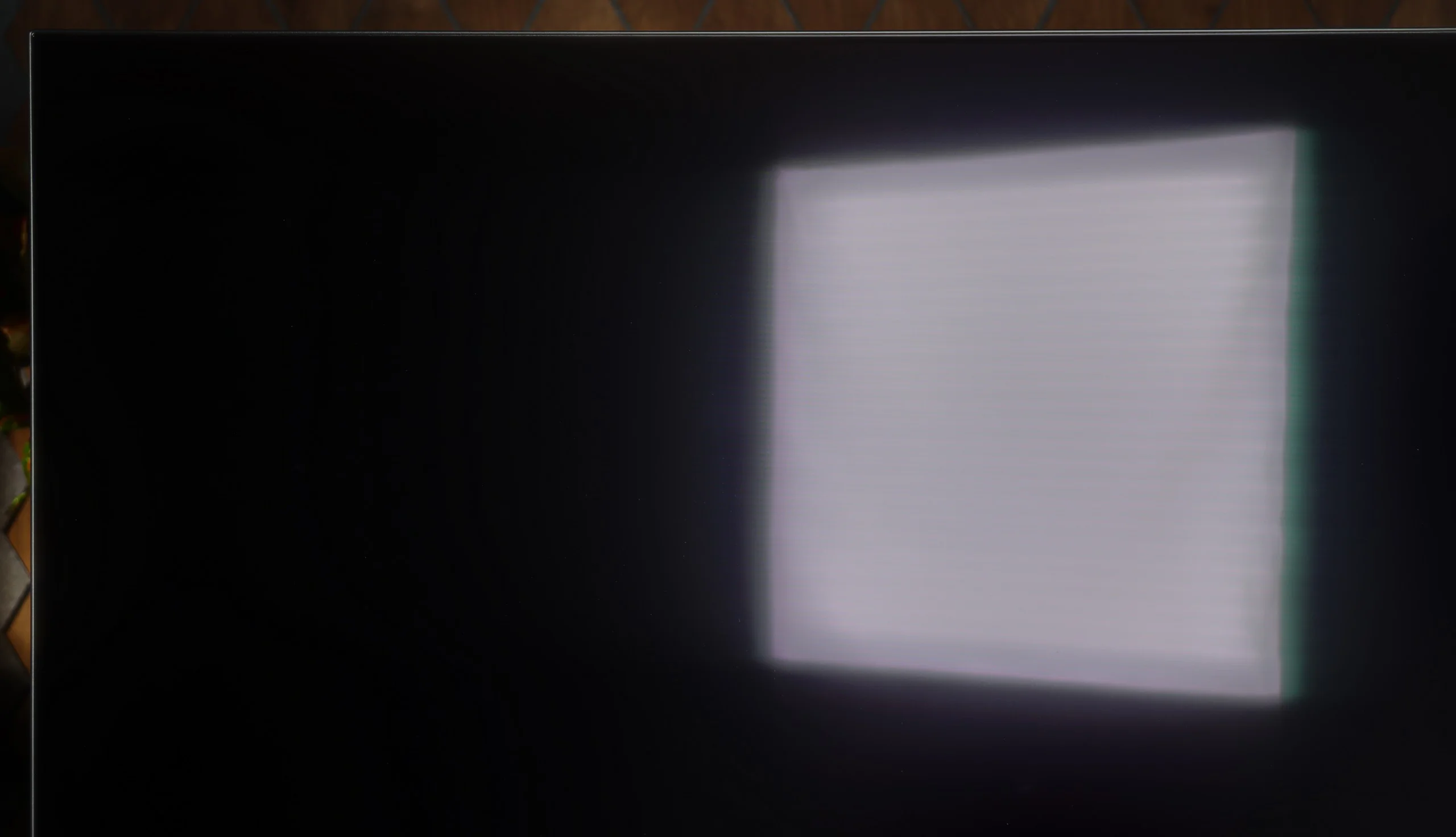
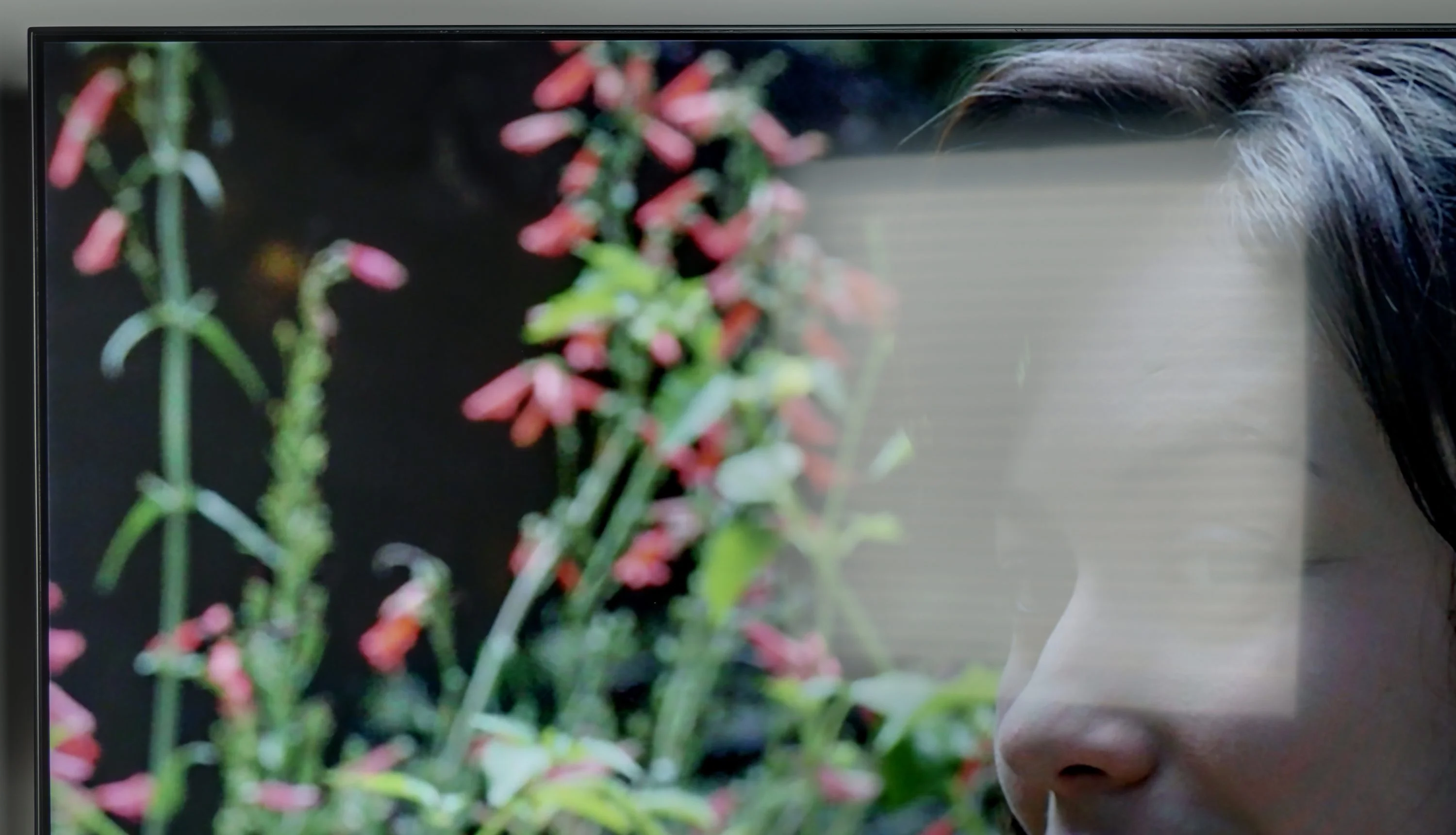
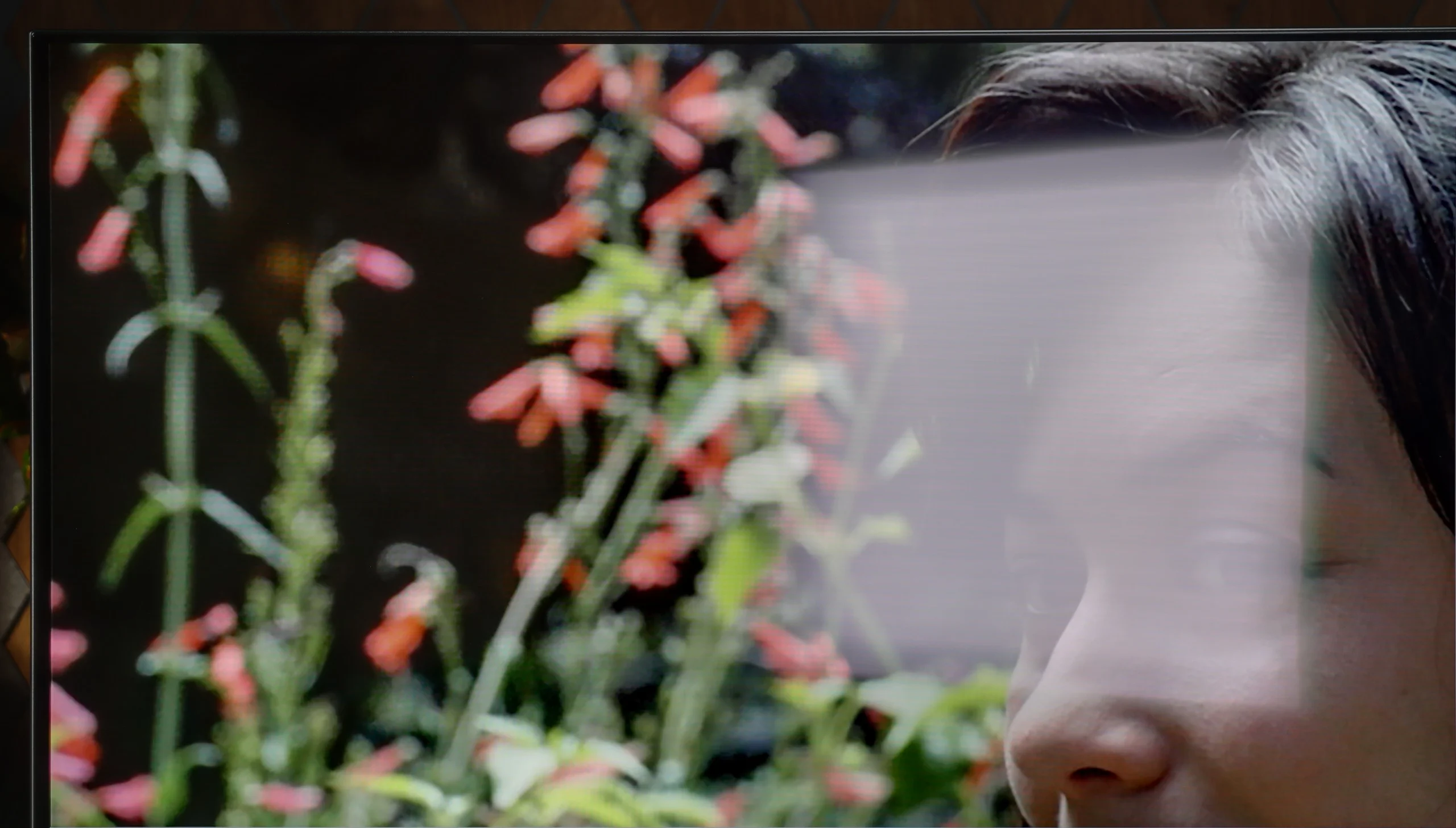
Panel brightness
Philips OLED761: 284 cd/m2
Philips PUS8359 (IPS): 305 cd/m2
In terms of daytime performance, the Philips PUS8359 performs average. The satin coating of the panel moderately dampens reflections, which can be noticeable in bright rooms. A brightness level of 300 cd/m² is acceptable in this price range, but one should not expect exceptional results in more challenging lighting conditions.
Philips OLED761 is not the best choice for a very bright living room. Average SDR brightness is around 280 nits, so it performs slightly worse even than rivals using the same panel. In a brightly sunlit room the image simply lacks the punch to remain clearly visible, especially when watching darker scenes. In such conditions, covering the windows may be necessary. It doesn't help that the satin coating on the WOLED SE panel handles direct reflections poorly. A window or lamp opposite the screen is fairly clearly visible, and you get characteristic doubling and colored halos around their reflections. On the plus side, blacks still look good in a lit room, but at low TV brightness the reflections themselves can be distracting. The OLED761 is therefore best used where you can block the windows and make sure strong light doesn't reflect directly on the screen.
Panel details
Subpixel Structure:
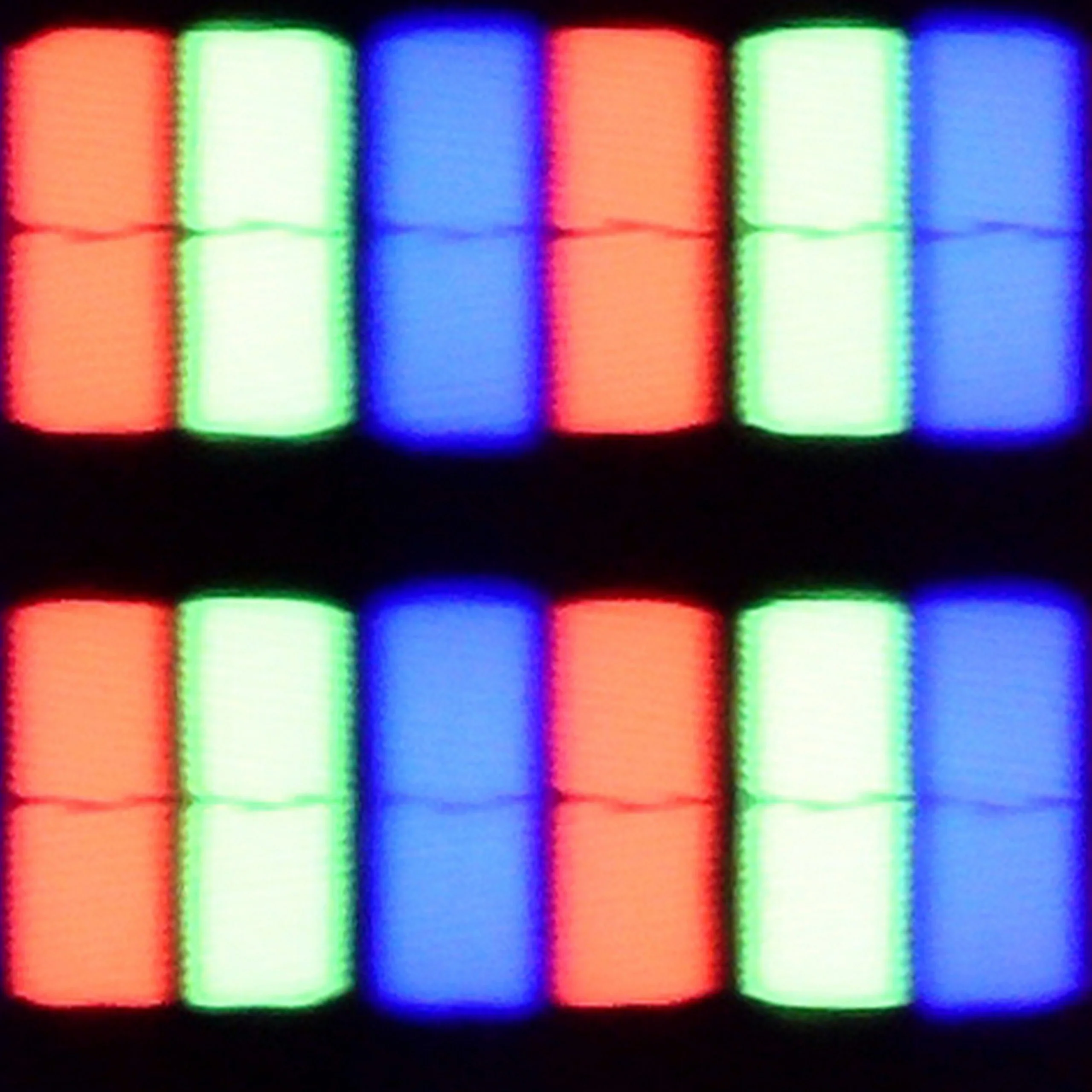
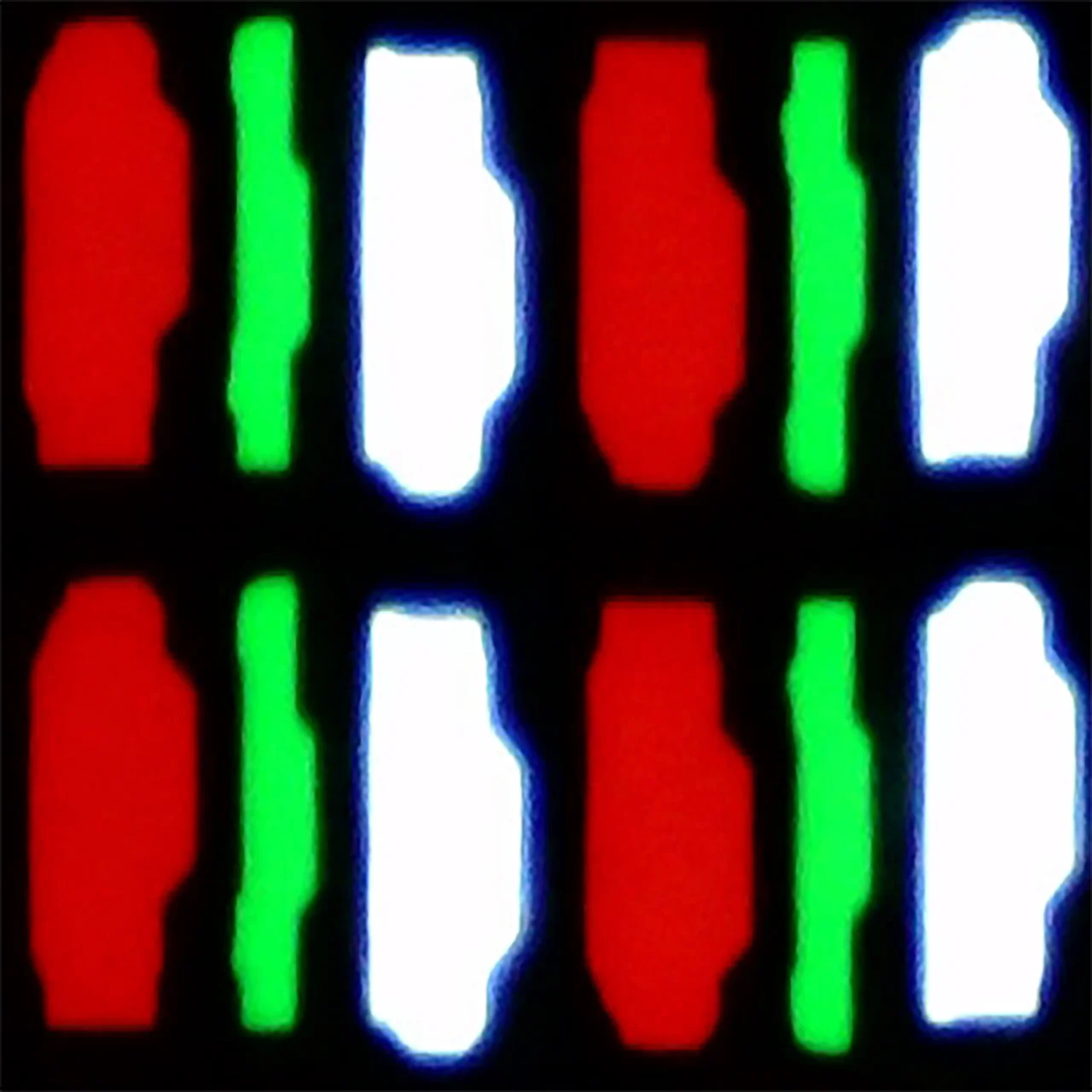
Panel uniformity and thermal imaging:
Philips PUS8359 (IPS)
Philips OLED761
TV features
5.3/10
7.9/10
- SystemTitan OSTitan OS
- System performancePoorGood
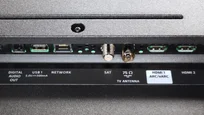
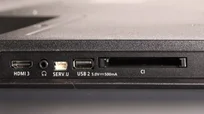
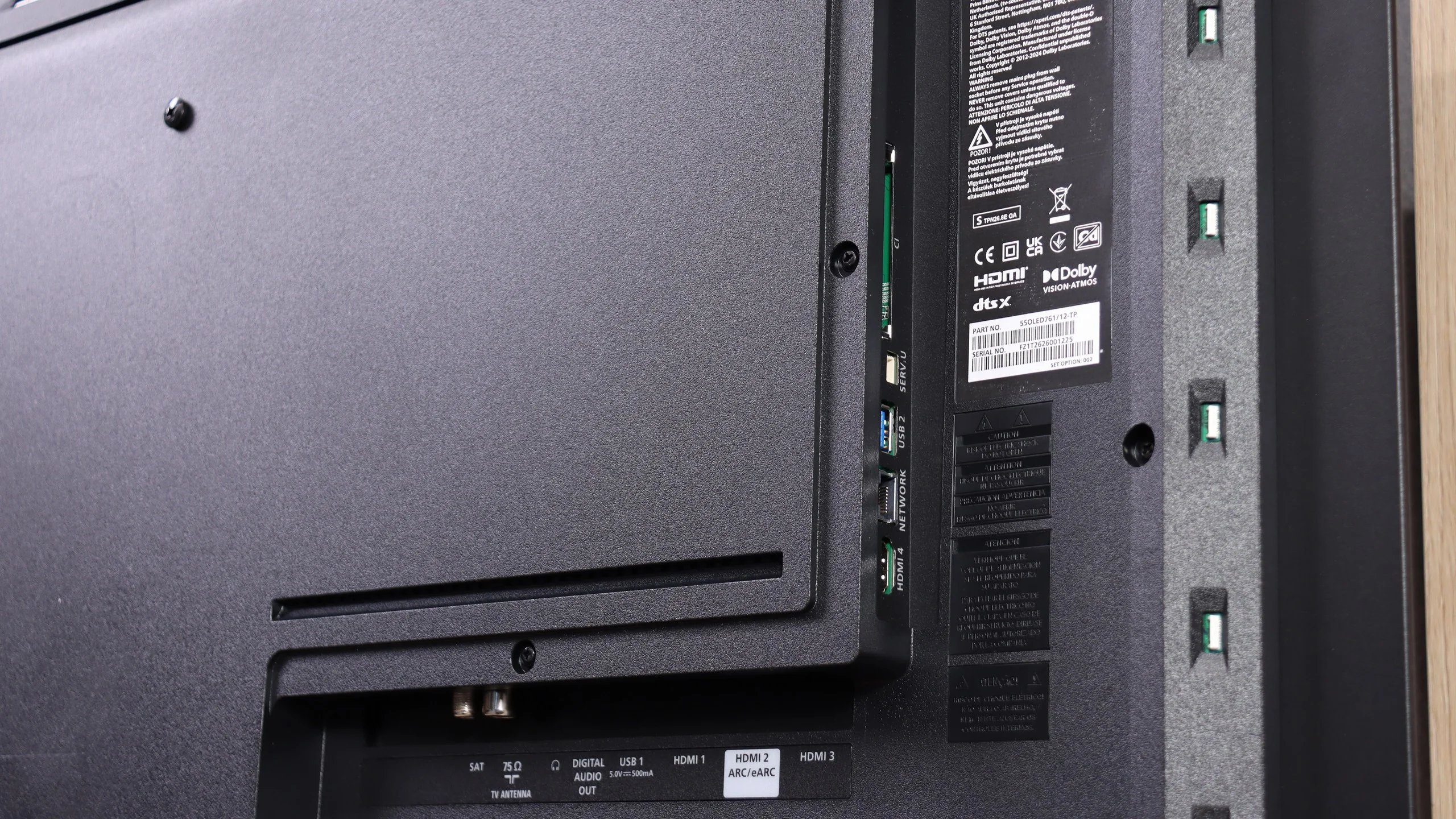
- HDMI inputs3 x HDMI 2.0, 0 x HDMI 2.10 x HDMI 2.0, 4 x HDMI 2.1 48Gbps
- OutputsToslink (Optical audio), eARC (HDMI), ARC (HDMI), Mini-Jack (Headphones)Toslink (Optical audio), eARC (HDMI), ARC (HDMI), Mini-Jack (Headphones)
- Network InterfacesWi-Fi 2.4GHz, Wi-Fi 5GHz, Ethernet (LAN) 100MbpsWi-Fi 2.4GHz, Wi-Fi 5GHz, Ethernet (LAN) 100Mbps
- TV receptionDVB-T, DVB-T2, DVB-S, DVB-S2, DVB-CDVB-T, DVB-T2, DVB-S, DVB-S2, DVB-C
Classic features:
- Recording to USB (terrestrial TV)
- Recording programming
- Picture in Picture (PiP)
- RF remote control (no need to aim)
- Backlit remote control
- Teletext
- Audio only mode
- Bluetooth headphones support
- Simultaneous Bluetooth headphones & TV audio
Smart features:
- AirPlay
- Screen mirroring (Windows Miracast)
- Voice search
- Voice search in native language
- Ability to connect a keyboard and mouse
Sound connection options
- HDMI audioeARC (HDMI), ARC (HDMI)eARC (HDMI), ARC (HDMI)
- Other audio outputsToslink (Optical audio), Mini-Jack (Headphones)Toslink (Optical audio), Mini-Jack (Headphones)
- Wireless audio
Supported audio formats (external HDMI eARC audio):
- Dolby Digital Plus 7.1
- Dolby True HD 7.1
- Dolby Atmos in Dolby Digital Plus (JOC)
- Dolby Atmos in Dolby True HD
- DTS:X in DTS-HD MA
- DTS-HD Master Audio
Senior accessibility
- Numeric keyboard on TV
- Font size adjustment
- Audio description
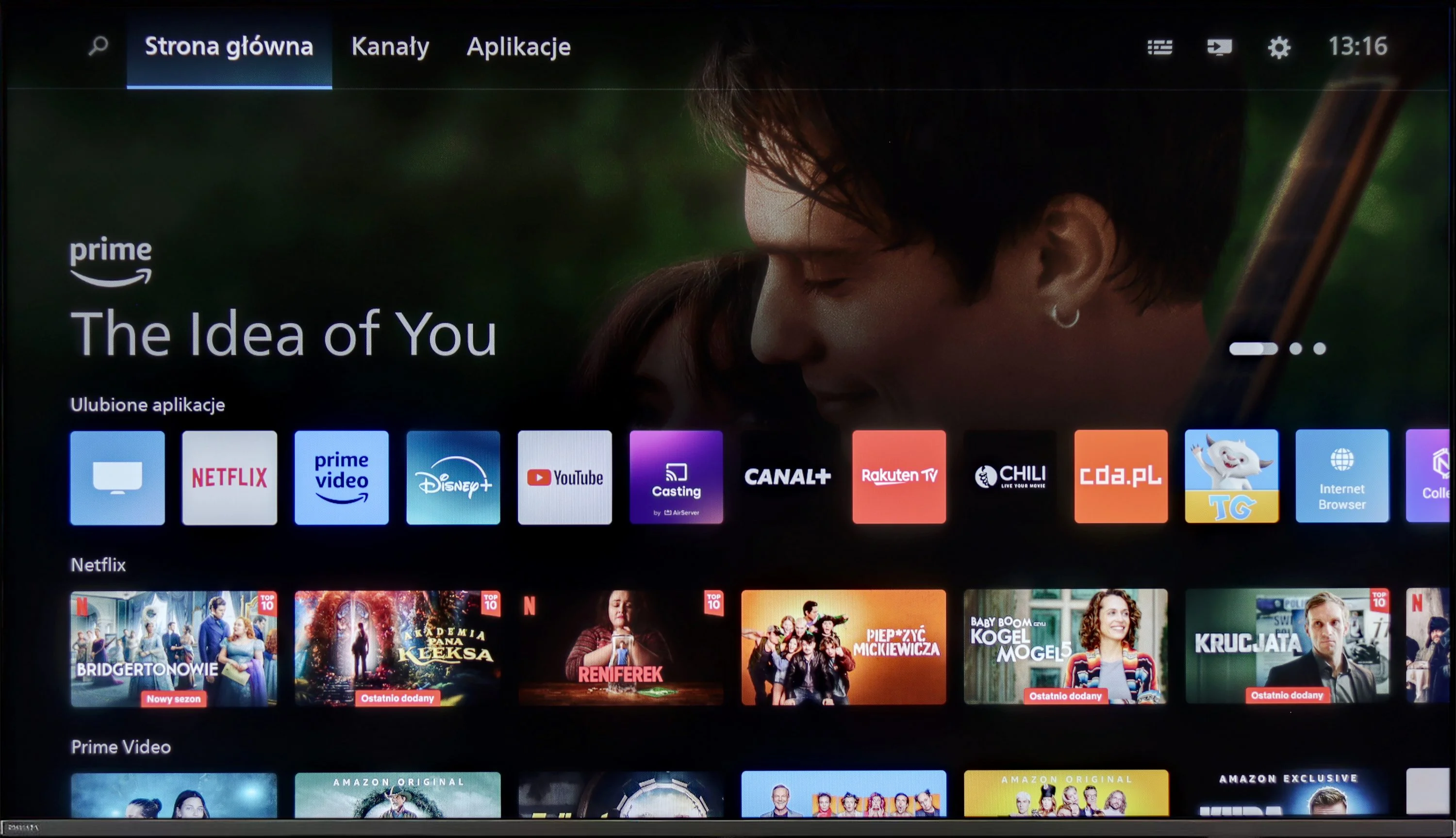
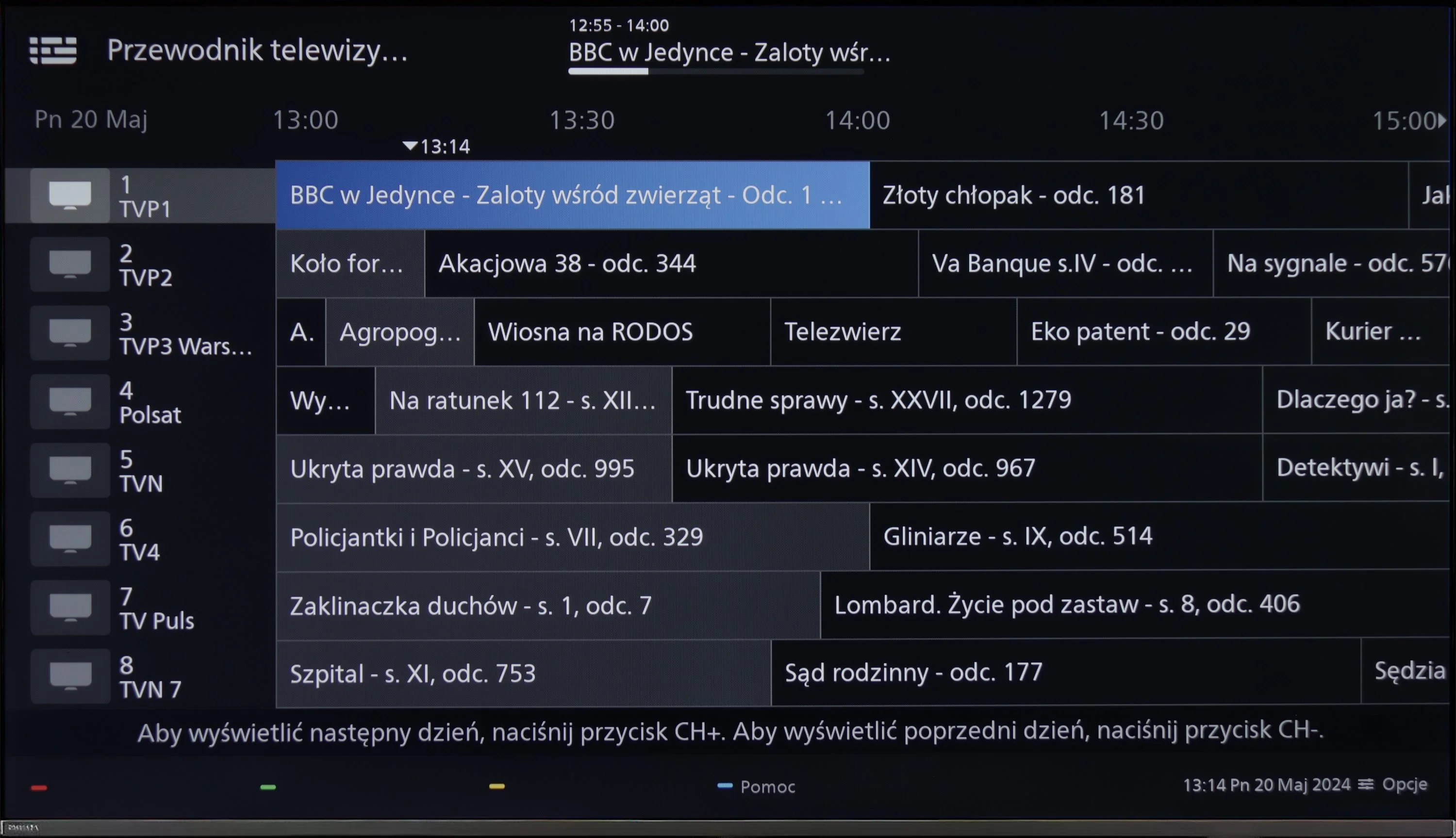
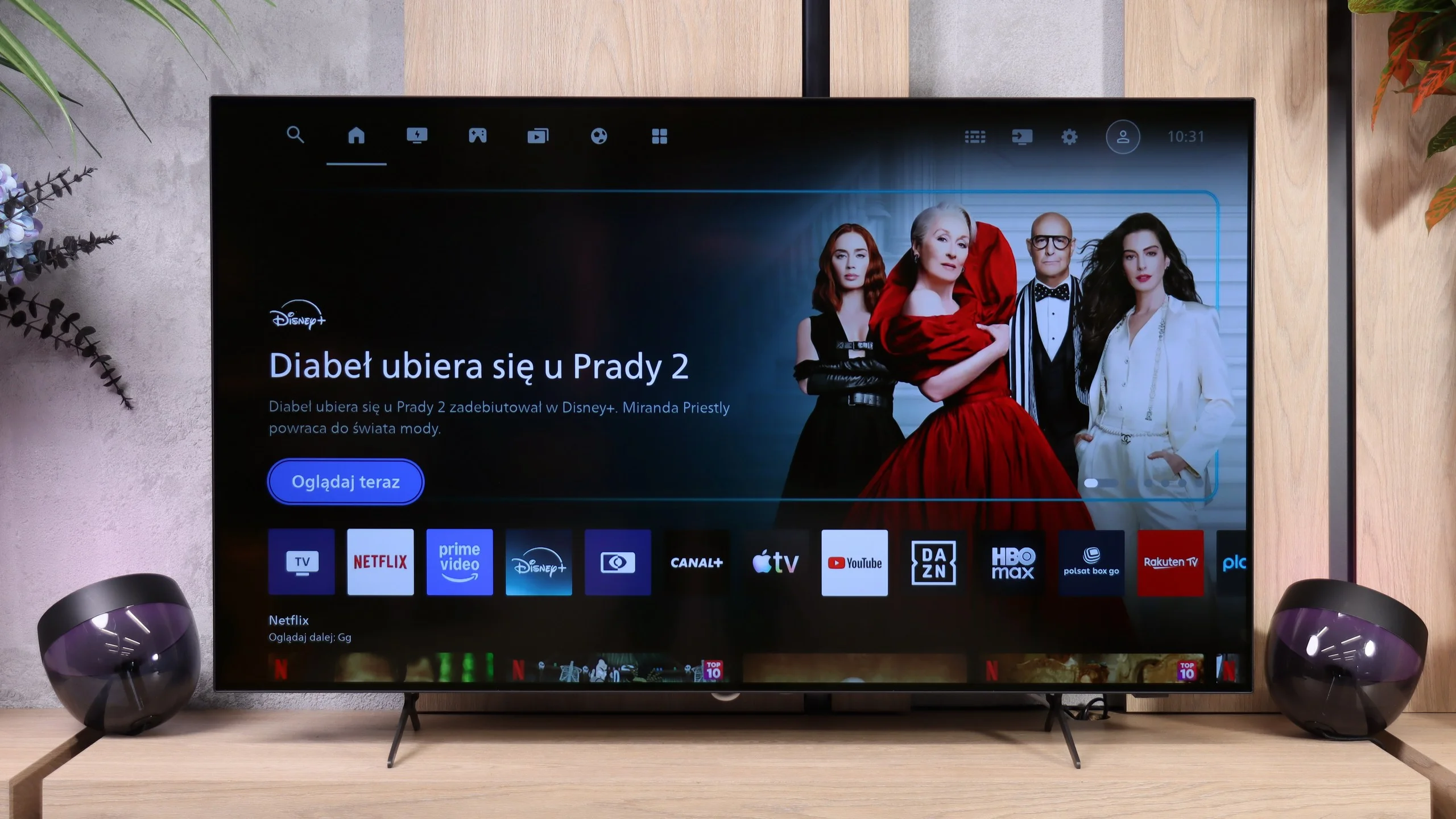
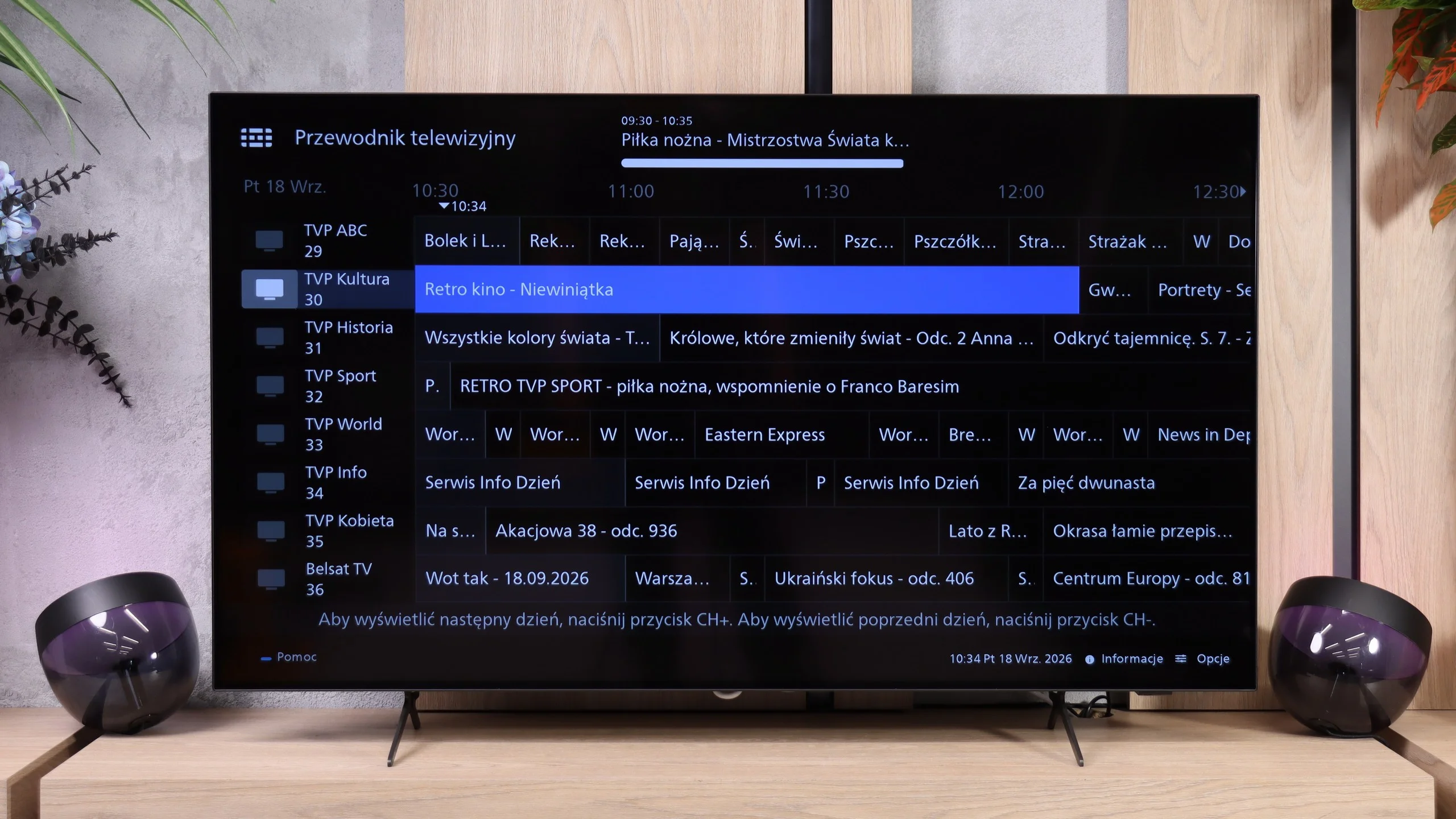
Philips has decided this year to change its approach to the operating system, replacing the previous open GoogleTV system with its proprietary TitanOS. As is often the case with new solutions, TitanOS is struggling with typical growing pains. Currently, it only offers basic applications, and the app store leaves much to be desired, which may disappoint users expecting a rich selection of programs. Additionally, the lack of support for AirPlay features and the inability to record to USB are further limitations that could affect the overall user experience.
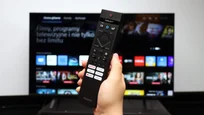
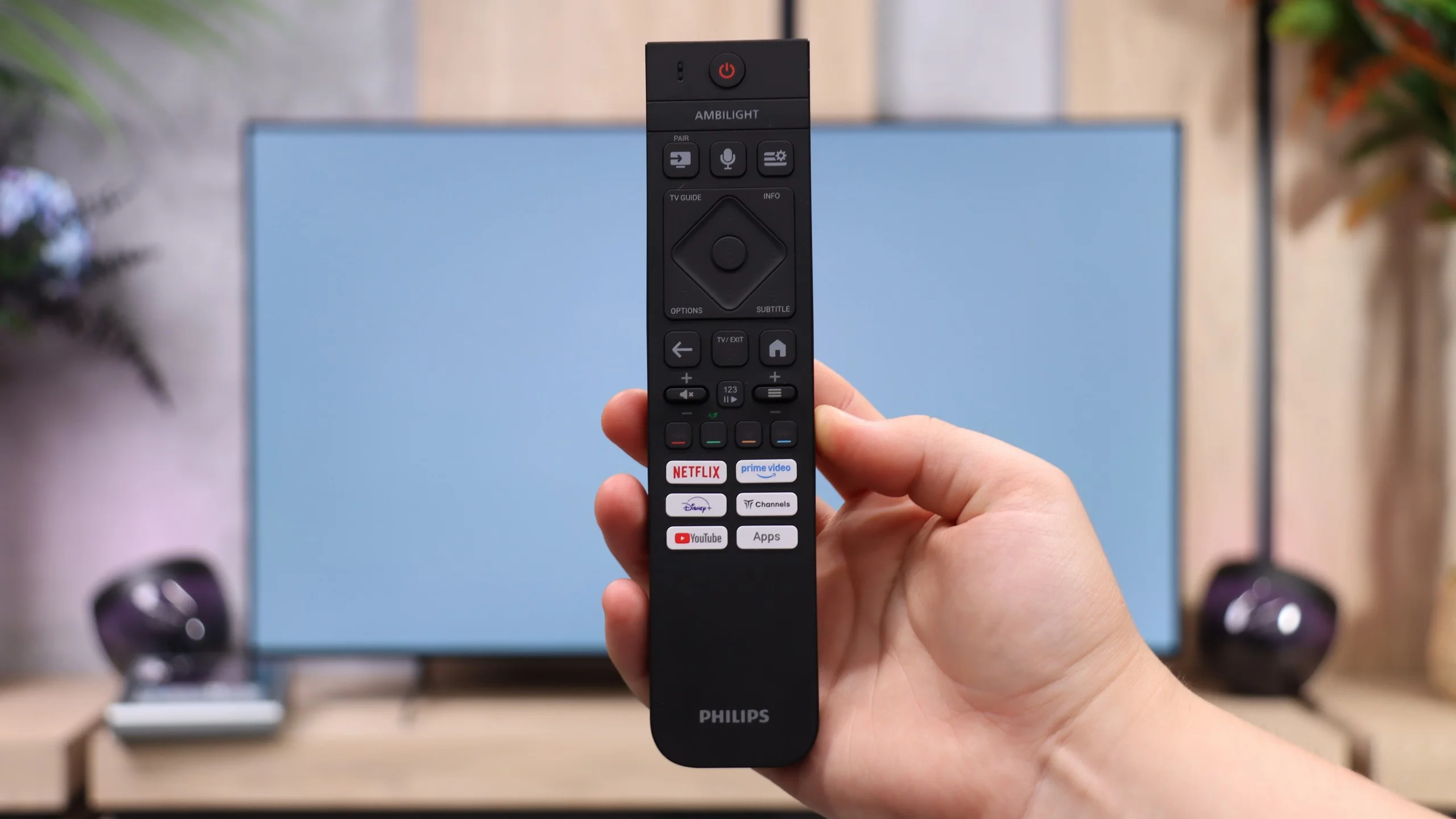
An interesting feature in models with TitanOS is the new remote control, which is very convenient to use thanks to its backlighting. Unfortunately, its wireless operation is not entirely consistent. The hybrid design means that sometimes you have to aim at the TV, and other times you don't – it depends on the buttons being used. It's just annoying.
The most important feature of the Philips PUS8359 TV is the three-sided Ambilight system, which significantly enhances the viewing experience. The LED lighting placed on the sides and top of the TV creates an immersive effect, extending the image beyond the screen and matching the colors to the displayed content. For many users, this is a key element that makes viewing sessions more engaging and sets the TV apart from competitors.
Titan OS
The OLED761 uses Titan OS instead of Google TV, a system that has been appearing more often in Philips TVs for several years. In that time the system has clearly matured. It responds to commands faster, navigates menus more smoothly, and features that previously caused problems are finally starting to work as they should. You can see real progress in everyday use, and that deserves praise. It still doesn't match the refinement and capabilities of webOS or Tizen, and it's a long way from the freedom and app selection offered by Google TV, but Titan OS is definitely moving in the right direction.
User features and ports
When watching regular TV you get basic conveniences, including teletext and a remote with a numeric keypad. The buttons are backlit, which is very handy in the evening, but it's hard to understand why Philips stubbornly sticks with infrared control for the remote. Having to point the remote at the TV can simply be inconvenient (the only feature that works via radio is voice control). There is also no USB recording or picture-in-picture. On the other hand, the port selection deserves praise: all four HDMI inputs support HDMI 2.1 at 48 Gbps, so after connecting a soundbar via eARC there are still three ports left that let you take full advantage of consoles and a PC. You don't have to worry about which device to connect at the cost of high refresh rates. There's even an analog mini-jack output, increasingly rare in new TVs but still useful for wired headphones or older audio equipment.
Ambilight
The most distinctive extra is, of course, Ambilight, for which Philips earns extra points from us. Lighting the wall with the colors from the screen can add a lot of atmosphere to movies and games, and it's also useful for relaxed evening viewing. The gentle glow means the bright screen isn't the only light source in a completely dark room, which can improve viewing comfort. It's worth tuning its intensity to the room rather than immediately setting it to maximum. For people who enjoy that style of watching, Ambilight can be one of the stronger reasons to choose the OLED761.
Apps
6.7/10
7.7/10






















Playing files from USB
8/10
8.6/10
Supported photo formats:
Maximum photo resolution:
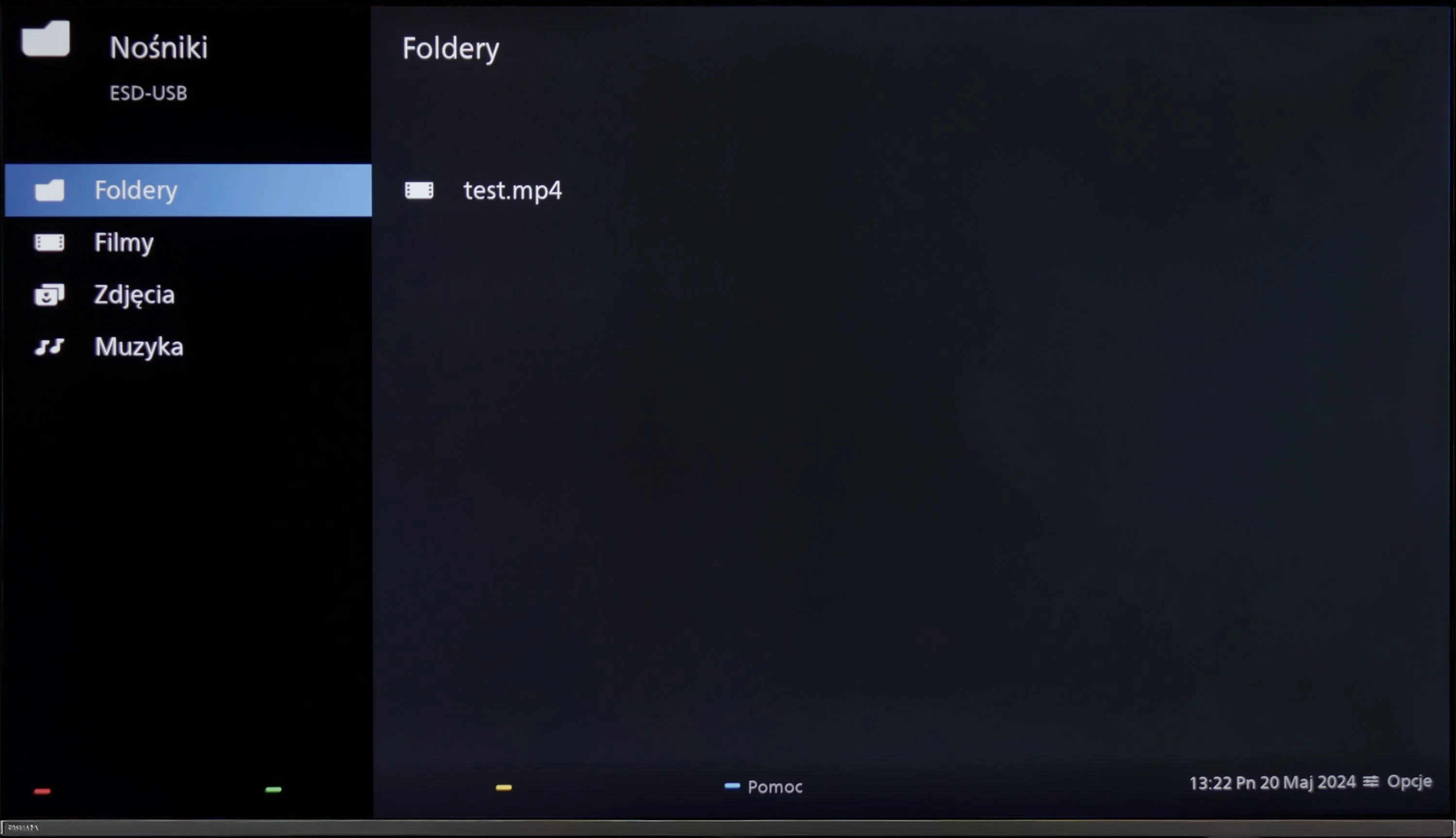
The default media player built into the Philips PUS8359 offers quite a wide range of capabilities but also has its limitations. It plays practically all video formats, with the obvious exception of Dolby Vision and the less obvious .asf, which is not commonly encountered. However, there are issues with the lack of the H.265 HEVC codec at high bitrate. When it comes to photos, the player performs adequately, but it lacks support for some popular resolutions and formats, such as HEIC, which is used on Apple devices. The player performs best with audio, where it has no faults. Unfortunately, due to system limitations, there is no possibility to expand its functionalities, which means we are left with what the manufacturer has prepared.
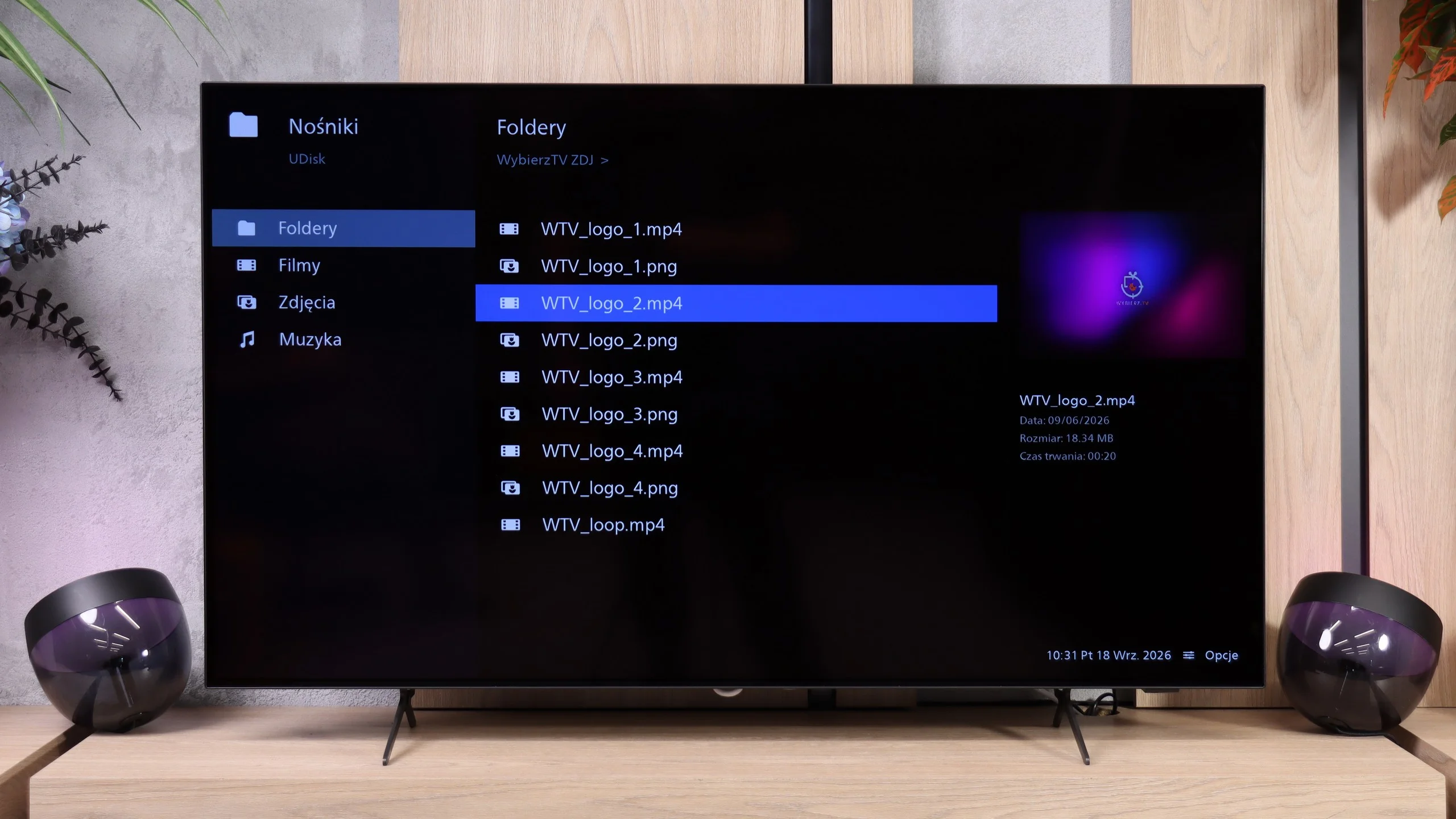
The USB player on the Philips OLED761 behaves rather oddly, and this is where you can see that Titan OS still needs refinement. Test videos and music files opened correctly, but photos caused the most problems. Interestingly, it wasn’t just a lack of support for certain formats, but also the photos’ resolution. The TV opened photos at 16 and 32 MP, yet it failed to handle some smaller ones, including 10 and 12 MP. So it’s hard to point to a simple rule for preparing photos that will guarantee they all display. If you plan to show vacation photos on the big screen, it’s worth checking the files beforehand or using screen mirroring.
Sound
6.1/10
7/10
- Maximum volume-90dB
- Dolby Digital Plus 7.1
- Dolby True HD 7.1
- Dolby Atmos in Dolby Digital Plus (JOC)
- Dolby Atmos in Dolby True HD
- DTS:X in DTS-HD MA
- DTS-HD Master Audio
The audio system in the Philips PUS8359 features a standard speaker setup of 2x10 W, which is unlikely to surprise enthusiasts of high-quality sound. At moderate volume levels (up to 50% of the maximum level), the sound remains tolerable and does not cause significant distortions. For better audio experiences, we definitely recommend connecting even a simpler soundbar. With support for Dolby Atmos and DTS, the TV works well with external audio systems.
The Philips OLED761 sounds quite good for a slim TV. The midrange is the strongest, so dialogue is clear and it's easy to understand what the characters are saying. For watching TV shows, the news, or regular programs, the built-in speakers are more than adequate. However, it lacks deep bass, which is most noticeable in music and action movies. Explosions have less impact, and music lacks a fuller sound. So if you want a more cinematic audio experience, a soundbar with a separate subwoofer will be a noticeable complement to this setup. Especially since the OLED761 handles immersive audio formats like Dolby Atmos and DTS:X with ease.
Sound Quality Test
No sound test video
Acoustic Measurements
No acoustic data
90dBC (Max)
75dBC
Reader comments
Comments are provided by the external service Disqus (Zeta Global). Once loaded, Disqus may set cookies and process data about your activity.
We will remember your choice on this device. Provider's privacy policy